

General troubleshooting
This page covers a few common situations where Home Assistant doesn’t behave as expected, and how to get back on track: recovery mode, safe mode, and missing updates.
Home Assistant went into recovery mode
Symptom
Your dashboard shows a Recovery mode activated card instead of your usual cards.
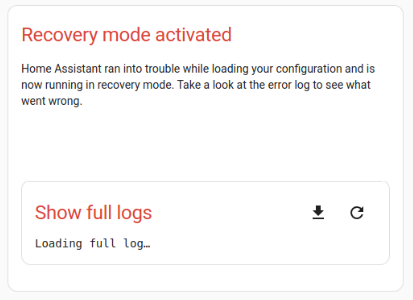
Description
Home Assistant starts in recovery mode when an issue prevents it from starting normally. A common cause is an error in a YAMLYAML is a human-readable data serialization language. It is used to store and transmit data in a structured format. In Home Assistant, YAML is used for configuration, for example in the configuration.yaml or automations.yaml files. [Learn more] file, such as configuration.yamlThe configuration.yaml file is the main configuration file for Home Assistant. It lists the integrations to be loaded and their specific configurations. In some cases, the configuration needs to be edited manually directly in the configuration.yaml file. Most integrations can be configured in the UI. [Learn more].
In recovery mode, Home Assistant ignores your configuration and loads only a minimal set of integrations. Your devices and automations aren’t running, but you can still open the user interface, read the logs, edit files with an app, and restore a backup.
Resolution
- Go to Settings > System > Logs and look for the error that explains what went wrong. It usually names the file and line that caused the problem.
- Fix the error in the configuration file. If you are running Home Assistant Operating SystemHome Assistant OS, the Home Assistant Operating System, is an embedded, minimalistic, operating system designed to run the Home Assistant ecosystem on single board computers (like the Raspberry Pi) or Virtual Machines. It includes Home Assistant Core, the Home Assistant Supervisor, and supports apps. Home Assistant Supervisor keeps it up to date, removing the need for you to manage an operating system. Home Assistant Operating System is the recommended installation type for most users., you can use an app such as Studio Code Server to edit your configuration.
- Restart Home Assistant.
If you can’t find or fix the error, you can also restore a backup from before the problem started, under Settings > System > Backups.
If you are locked out because you forgot your password, you can’t edit the configuration from the user interface. Follow the steps to reset your password.
Restarting Home Assistant in safe mode
If Home Assistant is acting up and you can’t find the cause, restart it in safe mode to narrow things down.
Safe mode starts Home Assistant without any custom integrations, custom cards, or themes. If the problem goes away in safe mode, one of those is the likely cause, not Home Assistant itself. Before you report an issue, check whether it still happens in safe mode.
Safe mode only lasts until the next restart. To leave safe mode, restart Home Assistant again.
You can restart in safe mode in several ways:
-
From the UI:
- Go to Settings > System, and in the top-right corner, select the power
icon. Select More options, select Restart Home Assistant in safe mode, and then select Restart. - For the other restart options, refer to Reloading, restarting, rebooting, and shutting down.
- Go to Settings > System, and in the top-right corner, select the power
-
From the command line:
- Run:
ha core restart --safe-mode
- Run:
-
By creating a file in the configuration directory:
- Create an empty file named
safe-modein your Home Assistant configuration directory, then restart Home Assistant. Home Assistant detects the file on startup, starts in safe mode, and removes the file.
- Create an empty file named
I don’t see any updates
Typically, updates are shown at the top of the Settings page. If you don’t see them there, the Visibility option might be disabled.
Resolution
- On the Settings page, in the top-right corner, select the three dots
menu and select Check for updates. - Go to Settings > System > Updates.
- Select the update notification.
- Select the cogwheel
, then set Visible to active.