Data Grand Lyon
The Data Grand Lyon integrationIntegrations connect and integrate Home Assistant with your devices, services, and more. [Learn more] lets you monitor data from the Grand Lyon open data platform (city of Lyon, France).
With this integration, you can:
- Track upcoming departure times at transit stops.
- Monitor real-time bike and dock availability at Vélo’v bike-sharing stations.
- Monitor real-time parking space availability at TCL park & ride (P+R) facilities.
Prerequisites
This integration uses data from the Grand Lyon open data platform.
You need an account on data.grandlyon.com. Sign up for a free account if you don’t have one. You can find more information about how to properly create an account and set a password in their documentation (fr).
Some users have reported issues with passwords containing special characters. If you have issues authenticating, try changing your password to remove them.
If you want to monitor transit stops, you also need to request access to the realtime next departures dataset. This is not required for Vélo’v stations.
Configuration
To add the Data Grand Lyon service to your Home Assistant instance, use this My button:

If the above My button doesn’t work, you can also perform the following steps manually:
-
Browse to your Home Assistant instance.
-
In the bottom right corner, select the
Add Integration button. -
From the list, select Data Grand Lyon.
-
Follow the instructions on screen to complete the setup.
After setting up the integration, you can add transit stops, Vélo’v bike-sharing stations, and park & ride facilities as sub-entries from the integration’s configuration page.
Adding a transit stop
- Go to Settings > Devices & services and select the Data Grand Lyon integration.
- Select Add transit stop.
- Select the stop you want to monitor. You can filter the list by stop name, address or city, or enter a stop ID directly. Address and city aren’t always available.
- Select the line you want to monitor on that stop. The list is pre-filtered by known lines on this stop. You can enter a line identifier directly.
The stop identifier. You can find the stop identifier on the Grand Lyon open data platform. Zoom in on the map and select a stop. The ID will be displayed at the bottom of the panel displayed on the right of the screen. The field is called id.
Adding a Vélo’v station
- Go to Settings > Devices & services and select the Data Grand Lyon integration.
- Select Add Vélo’v station.
- Select the station you want to monitor. You can filter the list by station name, address or city, or enter a station ID directly. Address and city aren’t always available.
The Vélo’v station identifier. You can find station IDs on the Grand Lyon open data platform. Zoom in on the map and select a station. The ID will be displayed at the top of the panel displayed on the right of the screen. The field is called idstation.
Adding a park & ride
- Go to Settings > Devices & services and select the Data Grand Lyon integration.
- Select Add park & ride.
- Select the park & ride you want to monitor. You can search the list by name, or enter a park & ride ID directly.
The park & ride identifier. You can find park & ride IDs on the Grand Lyon open data platform. Zoom in on the map and select a park & ride. The ID will be displayed in the panel on the right of the screen.
Supported functionality
Entities
The Data Grand Lyon integration provides the following entities.
Transit stop sensors
For each transit stop you add, the following sensor entities are created:
-
Next departure 1
- Description: The departure time of the next vehicle at this stop.
-
Next departure 1 direction
- Description: The direction (destination) of the next vehicle at this stop.
-
Next departure 1 type
- Description: Whether the departure time is estimated (based on real-time vehicle tracking) or theoretical (based on the scheduled timetable).
-
Next departure 2
- Description: The departure time of the second vehicle at this stop.
-
Next departure 2 direction
- Description: The direction (destination) of the second vehicle at this stop. Disabled by default.
-
Next departure 2 type
- Description: Whether the departure time is estimated or theoretical. Disabled by default.
-
Next departure 3
- Description: The departure time of the third vehicle at this stop.
-
Next departure 3 direction
- Description: The direction (destination) of the third vehicle at this stop. Disabled by default.
-
Next departure 3 type
- Description: Whether the departure time is estimated or theoretical. Disabled by default.
Vélo’v station binary sensors
For each Vélo’v station you add, the following binary sensor entity is created:
-
Station open
- Description: Whether the Vélo’v station is open. On means the station is open and available for use. Off means the station is closed.
Vélo’v station sensors
For each Vélo’v station you add, the following sensor entities are created:
-
Available bikes
- Description: The total number of bikes currently available at the station.
-
Available mechanical bikes
- Description: The number of mechanical (non-electric) bikes available at the station.
-
Available electrical bikes
- Description: The number of electrical bikes available at the station.
-
Available stands
- Description: The number of free docking stands available at the station.
-
Capacity
- Description: The total number of docking stands at the station. Disabled by default.
-
Electrical internal battery bikes
- Description: The number of electrical bikes with an internal battery available at the station. Disabled by default.
-
Electrical removable battery bikes
- Description: The number of electrical bikes with a removable battery available at the station. Disabled by default.
Park & ride sensors
For each park & ride you add, the following sensor entities are created:
-
Available parking spaces
- Description: The number of parking spaces currently available at the facility.
-
Capacity
- Description: The total number of parking spaces at the facility.
-
Accessible parking spaces
- Description: The number of parking spaces reserved for people with reduced mobility. Disabled by default.
-
Opening hours
- Description: The opening hours of the facility. Disabled by default.
-
Name
- Description: The name of the park & ride facility. Disabled by default.
Examples
Refresh data more frequently during a time window
Get fresher upcoming-departure data before your commute without raising the polling rate the rest of the day. This blueprint refreshes a transit stop’s sensors at a configurable interval inside a time window — by default, every minute between 8:00 and 9:00.

Prefer to configure this automation manually? Use the YAML below.
Automation YAML
Replace the placeholder values with values from your Home Assistant instance.
alias: 'Data Grand Lyon: refresh more frequently during a time window'
trigger_variables:
  interval_minutes: 1
triggers:
  - trigger: time_pattern
    minutes: "/{{ interval_minutes }}"
conditions:
  - condition: time
    after: '08:00:00'
    before: '09:00:00'
actions:
  - action: homeassistant.update_entity
    target:
      entity_id: YOUR_SENSOR
Data updates
The integration polls data from the Data Grand Lyon API every 5 minutes by default.
Known limitations
- The integration provides up to three upcoming departures per stop. If fewer departures are available, the remaining sensors show as unavailable.
- There is no estimated data for subways, only theoretical.
Troubleshooting
Can’t set up the integration
Symptom: “Invalid authentication”
When trying to set up the integration, the form shows the message “Invalid authentication”.
Description
This means the username or password you entered is incorrect.
Resolution
To resolve this issue, try the following steps:
- Make sure you are using your data.grandlyon.com credentials.
- Log in to the Grand Lyon data portal directly to verify your credentials work.
- If you forgot your password, reset it on the Grand Lyon data portal.
Transit stop shows no data
First, make sure the line identifier and stop ID are correct. You can verify these on the Grand Lyon open data platform.
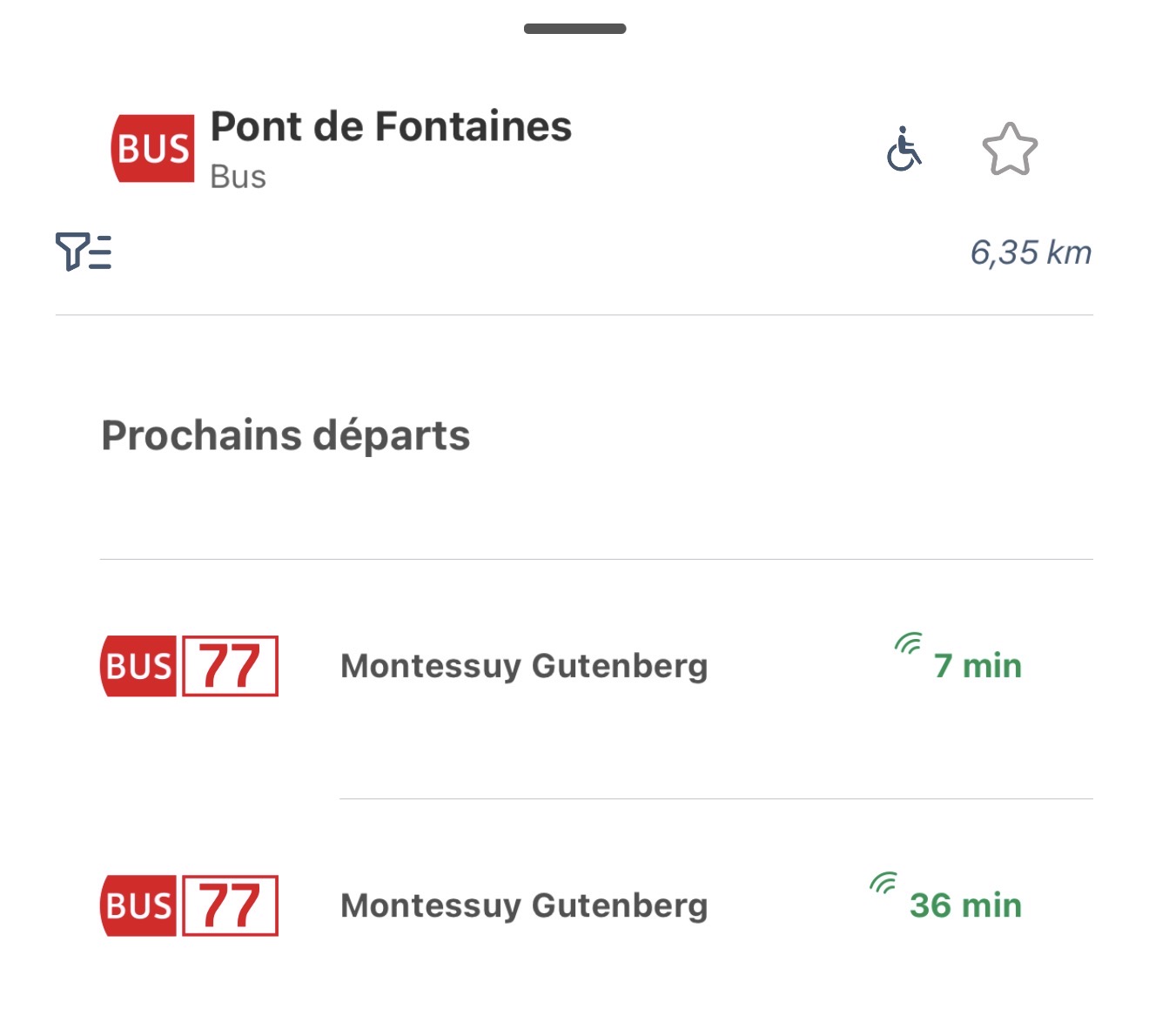
If the identifiers are correct, the source itself may not have real-time data for that stop. Real-time departures are not available for every stop or at every time of day. You can check whether the source has live data using the official TCL app. Open your stop in the app and look at the next departures:
-
If the next departure shows a green real-time indicator, live data is available in the source and the integration should report departures.
-
If the next departure is shown in gray (for example, as a fixed time or as Terminus de la ligne), there is very likely no live data available in the source.
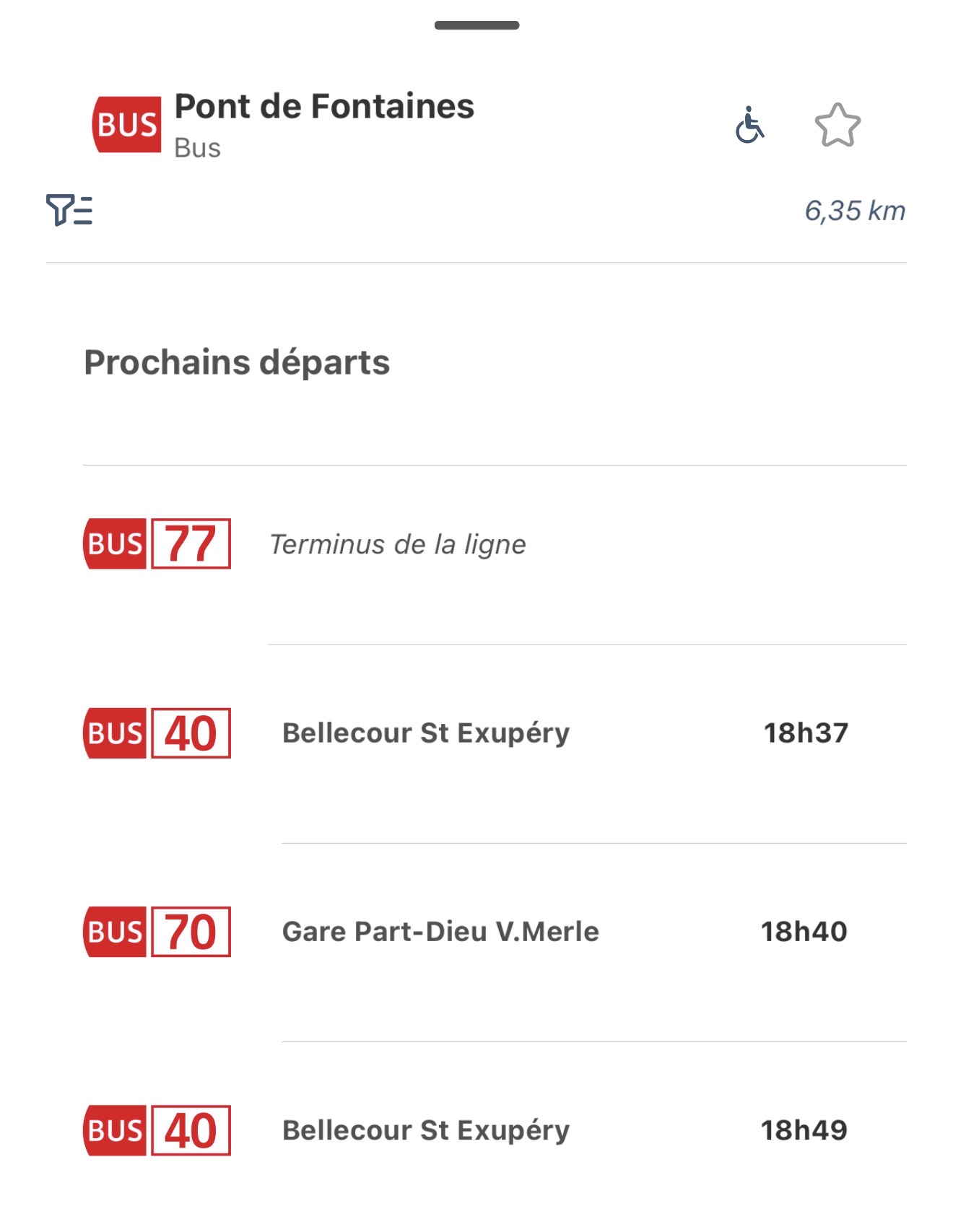
When the source has no live data, it often comes back later. Sometimes the data returns after a few hours, and sometimes it takes a few days.
Vélo’v station shows no data
Make sure the station ID is correct. You can verify it on the Grand Lyon open data platform.
Park & ride shows no data
Make sure the park & ride ID is correct. You can verify it on the Grand Lyon open data platform.
Removing the integration
This integration follows standard integration removal.
To remove an integration instance from Home Assistant
- Go to Settings > Devices & services and select the integration card.
- From the list of devices, select the integration instance you want to remove.
- Next to the entry, select the three dots
menu. Then, select Delete.