

Diagnostics
The Diagnostics integrationIntegrations connect and integrate Home Assistant with your devices, services, and more. [Learn more] lets you download a diagnostics file for a specific integrationIntegrations connect and integrate Home Assistant with your devices, services, and more. [Learn more] or deviceA device is a model representing a physical or logical unit that contains entities.. Sharing this file when reporting an issue helps developers diagnose and fix the problem faster, because it contains the relevant state, configuration, and context without requiring you to describe every detail by hand.
This integration is always enabled and requires no setup. However, not every integration provides diagnostic data. When no data is available, the download option is not shown.
About sensitive information in the diagnostics file
Before sharing a diagnostics file publicly (for example, in a GitHub issue), open it in any text editor to review its contents. Integrations must redact sensitive information, such as API keys, tokens, and passwords. Redacted values appear in the file as **REDACTED**, but it is always good to verify before sharing.
Downloading diagnostics
You can download diagnostics from two places in Home Assistant.
From the integration page
- Go to Settings > Devices & services.
- Select the integration you want diagnostics for.
- Open the three-dot
menu and select Download diagnostics.
The downloaded file contains information about the integration as a whole and all of its devices.
From a device page
- Go to Settings > Devices & services.
- Select the integration, then select the device you want diagnostics for.
- Open the three-dot
menu and select Download diagnostics.
The downloaded file contains information specific to that device only, which is useful when reporting a device-specific issue.
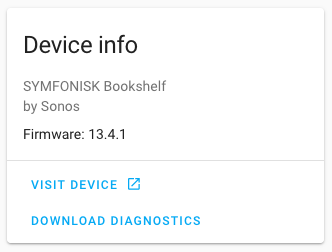 Screenshot of the Download diagnostics button on a device page.
Related
For more general guidance on gathering troubleshooting information when reporting a problem, see Debug logs and diagnostics.