EnergyID
The EnergyID integrationIntegrations connect and integrate Home Assistant with your devices, services, and more. [Learn more] connects your Home Assistant to EnergyID—a cloud platform for energy monitoring and optimization. This integration uploads your Home Assistant sensor data and provides advanced analytics and performance tracking for solar, battery, energy consumption, and more.
Prerequisites
-
An active account on EnergyID.
-
A Provisioning Key and Provisioning Secret generated from your EnergyID portal. These credentials allow Home Assistant to securely connect to your account.
- For detailed instructions, refer to the official EnergyID Home Assistant documentation.
Configuration
To add the EnergyID service to your Home Assistant instance, use this My button:

If the above My button doesn’t work, you can also perform the following steps manually:
-
Browse to your Home Assistant instance.
-
In the bottom right corner, select the
Add Integration button. -
From the list, select EnergyID.
-
Follow the instructions on screen to complete the setup.
During the setup, you will be prompted for the following information:
Initial setup steps
- After adding the integration, you will first be asked to enter your Provisioning Key and Secret.
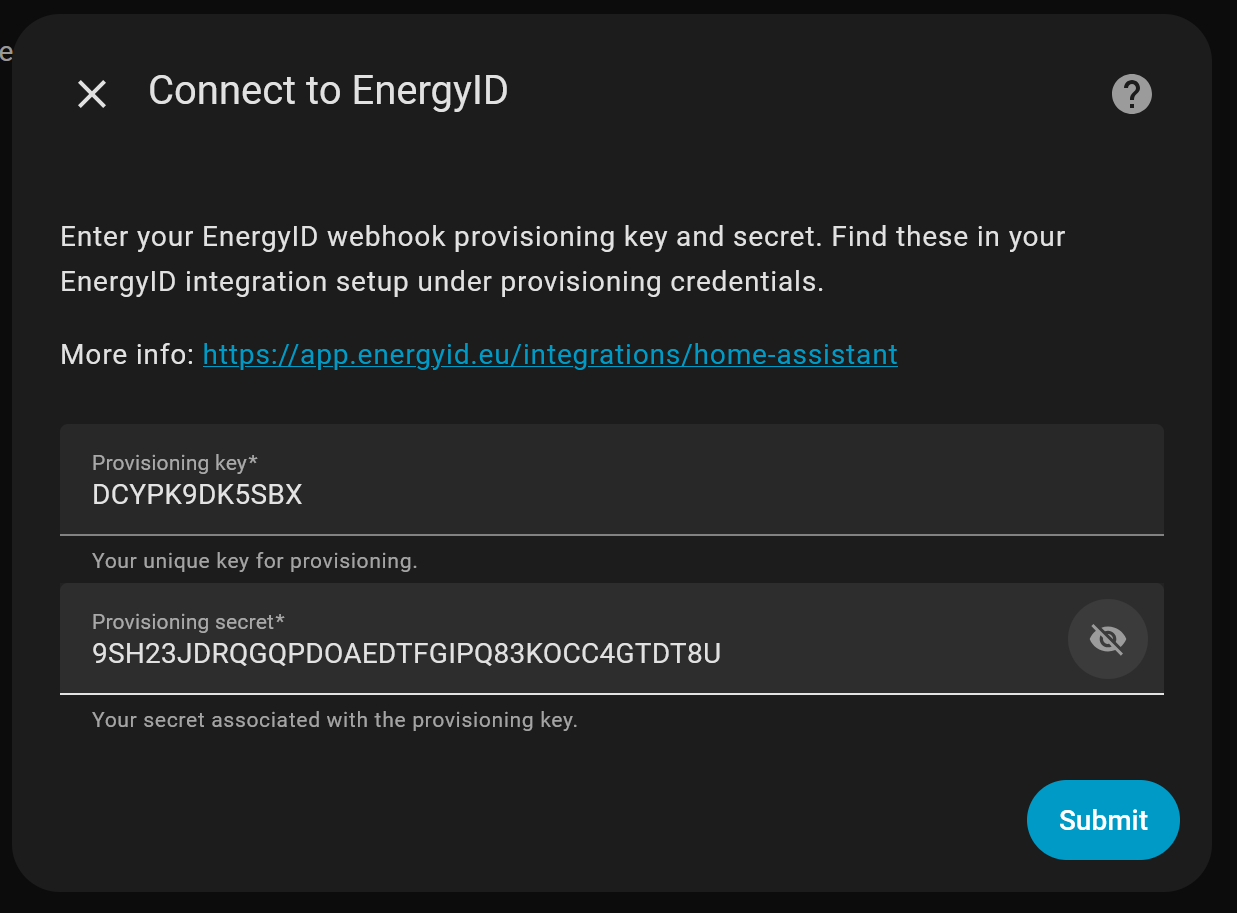
- If this is the first time you are connecting this Home Assistant instance, you will be directed to the EnergyID website to claim your device. This step links your Home Assistant instance to a specific record (e.g., your house) in your EnergyID account.
- Once claimed, the setup will automatically complete.
Managing sensor mappings
After the initial setup, you can manage which Home Assistant sensors send data to EnergyID.
- Go to Settings > Devices & services.
- Find the EnergyID integration and select Configure.
From here, you can add new sensor mappings. When adding a mapping, you will be asked for the following:
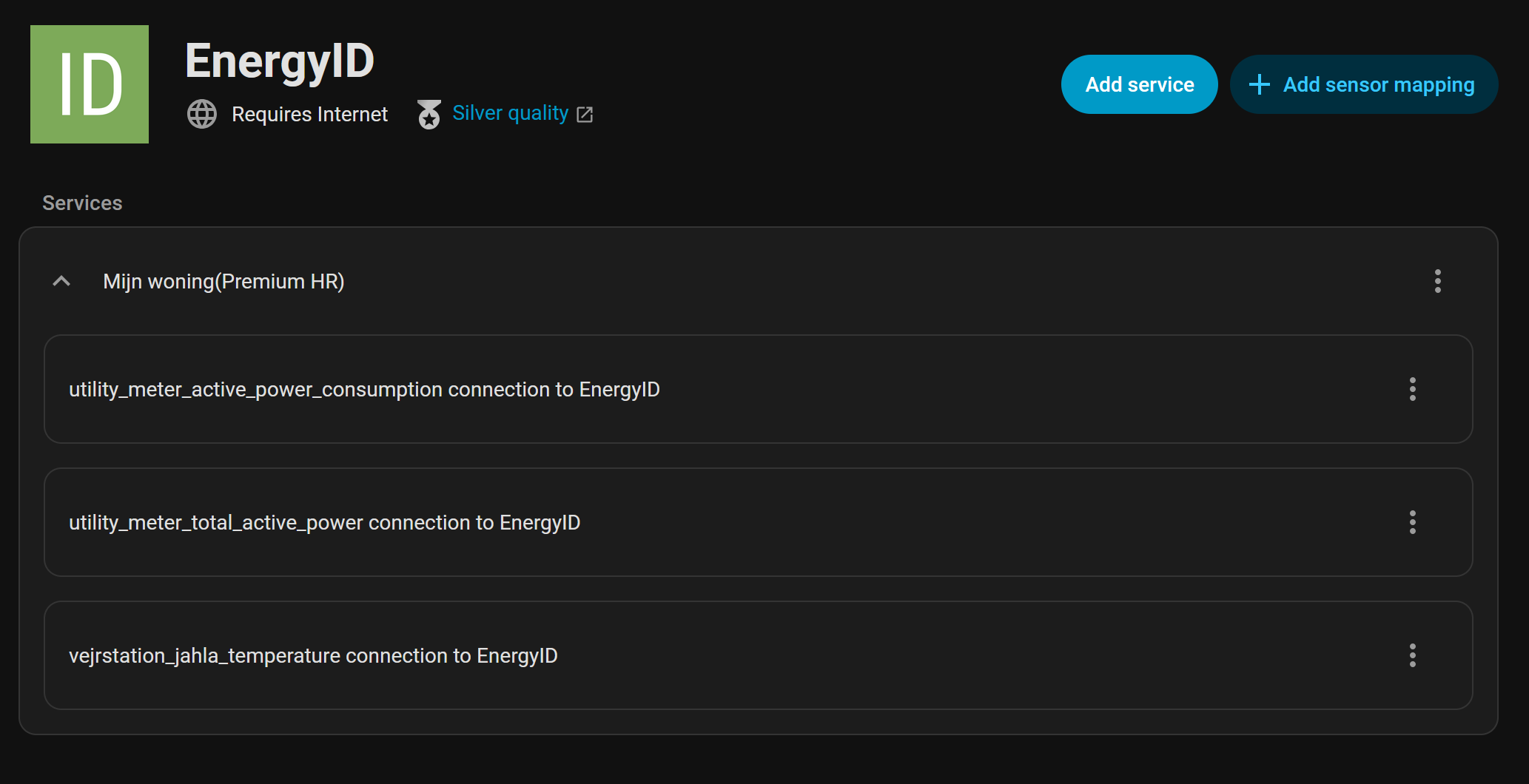
When you select a sensor, its object_id (the part of the entity ID after the dot) will be used as the EnergyID Metric Key. For example, mapping sensor.total_active_power will send data to EnergyID with the key total_active_power.
Data updates
The EnergyID integration uses a push-based mechanism with batching:
- It listens for stateThe state holds the information of interest of an entity, for example, if a light is on or off. Each entity has exactly one state and the state only holds one value at a time. However, entities can store attributes related to that state such as brightness, color, or a unit of measurement. [Learn more] changes on your mapped sensors.
- When a sensor’s value changes, the new value and timestamp are queued.
- The queued data is automatically sent to EnergyID in batches. The upload interval is determined by the policy received from EnergyID (typically every 60 seconds).
This is more efficient than traditional pollingData polling is the process of querying a device or service at regular intervals to check for updates or retrieve data. By defining a custom polling interval, you can control how frequently your system checks for new data, which can help optimize performance and reduce unnecessary network traffic. [Learn more], as it only sends data when there are new updates.
Use cases
- Send anything in Home Assistant to EnergyID for long term storage/graphing and detailed analysis.
- Use EnergyID’s features to compare your energy usage against anonymized data from similar households and generate detailed reports.
- Many more advantages of EnergyID and a brief intro can be found.
Troubleshooting
If you’re experiencing issues with your EnergyID integration, please try these general troubleshooting steps:
Data not appearing in EnergyID
- Verify that the linked entities from your Home Assistant are actually being updated and are not just stationary or stale. Not all entities send out changes frequently.
- Make sure that your entities are correctly mapped in the integration settings.
- Try reloading the EnergyID integration or even try reloading the integration of the entity which is not updating data in EnergyID
- Be sure to check Home Assistant logs for any errors or issues, or turn on debugging for the integration to receive more info on its workings.Settings > System > Logs