OVHcloud AI Endpoints
The OVHcloud AI Endpoints integrationIntegrations connect and integrate Home Assistant with your devices, services, and more. [Learn more] adds a conversation agent powered by OVHcloud AI Endpoints to Home Assistant. OVHcloud AI Endpoints is a serverless inference platform that gives you access to a curated catalog of open-weight large language models hosted in Europe.
Controlling Home Assistant is done by providing the AI access to the Assist API of Home Assistant. You can control what devices and entities it can access from the exposed entities page. The AI can provide you with information about your devices and control them.
This integration is useful if you want to keep your conversation data within a European cloud provider, or if you want to use a specific open-weight model from the OVHcloud AI Endpoints catalog.
Prerequisites
- You need an OVHcloud account with access to the AI Endpoints product.
- This is a paid service. Monitor your usage and costs in the OVHcloud Control Panel to avoid unwanted charges.
Generating an API key
The API key is used to authenticate requests to OVHcloud AI Endpoints. To generate an API key, follow the official guide.
The guide includes the following steps:
- Log in to the OVHcloud Control Panel.
- Go to the Public Cloud section and select your project or create a new one.
- In the left menu, under AI & Machine Learning, select AI Endpoints.
- Open the API keys tab and create a new API key.
- Copy the generated key. You’ll use it to configure the integration.
Configuration
To add the OVHcloud AI Endpoints service to your Home Assistant instance, use this My button:

If the above My button doesn’t work, you can also perform the following steps manually:
-
Browse to your Home Assistant instance.
-
In the bottom right corner, select the
Add Integration button. -
From the list, select OVHcloud AI Endpoints.
-
Follow the instructions on screen to complete the setup.
Options
To define options for OVHcloud AI Endpoints, follow these steps:
-
In Home Assistant, go to Settings > Devices & services.
-
If multiple instances of OVHcloud AI Endpoints are configured, choose the instance you want to configure.
-
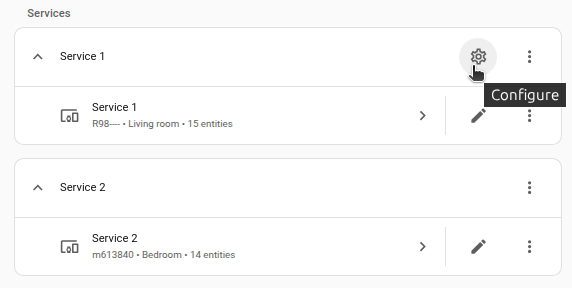
On the card, select the cogwheel
. - If the card does not have a cogwheel, the integration does not support options for this service.
-
Edit the options, then select Submit to save the changes.
The integration supports adding one or more conversation agents as subentries. Each conversation agent is bound to a model from the OVHcloud AI Endpoints catalog. To add a conversation agent, go to Settings > Devices & services, open the OVHcloud AI Endpoints integration, and select Add conversation agent.
A conversation agent has the following configuration options:
The model used for the conversation agent. The list of available models is fetched directly from the OVHcloud AI Endpoints catalog. Refer to the OVHcloud AI Endpoints documentation for details about each model.
Instructions for the AI on how it should respond to your requests. It is written using Home Assistant Templating.
If the model is allowed to interact with Home Assistant. It can only control or provide information about entities that are exposed to it.
Supported functionality
The integration provides a conversation entity for each configured conversation agent. You can use this entity to:
- Chat with the model through the Home Assistant interface.
- Use the model as a conversation agent in an Assist pipeline.
- Trigger the model from automations and scripts with the
conversation.processaction.
Assist pipeline
You can set up your OVHcloud AI Endpoints conversation agent in an Assist pipeline, as described in the voice guide. You can then chat through the Home Assistant web interface, or on Android or Apple devices using the Home Assistant Companion App, or by voice using an Assist satellite.
Expose entities and configure aliases for the entities you want the model to control.
Known limitations
- Only models that support the OpenAI-compatible chat completions API of OVHcloud AI Endpoints can be used.
- Tool calling is required for the Control Home Assistant option to work. If the selected model does not support tool calling, the agent will still answer questions but won’t be able to control your devices.
- This integration does not integrate with sentence triggers.
Removing the integration
This integration follows standard integration removal. No extra steps are required.
To remove an integration instance from Home Assistant
- Go to Settings > Devices & services and select the integration card.
- From the list of devices, select the integration instance you want to remove.
- Next to the entry, select the three dots
menu. Then, select Delete.