Rabbit Air
The Rabbit Air integrationIntegrations connect and integrate Home Assistant with your devices, services, and more. [Learn more] lets you control your air purifier over the local network.
Supported devices
The following device models are currently supported:
- MinusA2 (second generation)
- A3
Prerequisites
To set up the integration, you need the Thing ID and User key from the Rabbit Air 2 app. In Home Assistant, use the Thing ID as part of the host and the User key for access_token.
- Open the Rabbit Air 2 app. You will see a list of devices connected to your account.
- Tap your Rabbit Air device to open the device control page.
- In the top right corner, tap the three-dot menu and select Rename.
- On the Rename device screen, tap your device name (for example, MinusA2) to expand the section and reveal the Thing ID and User key.
The Thing ID is the device’s mDNS hostname. You can use the Thing ID for host by adding the suffix .local at the end. Use the User key for access_token.
For example, the app shows:
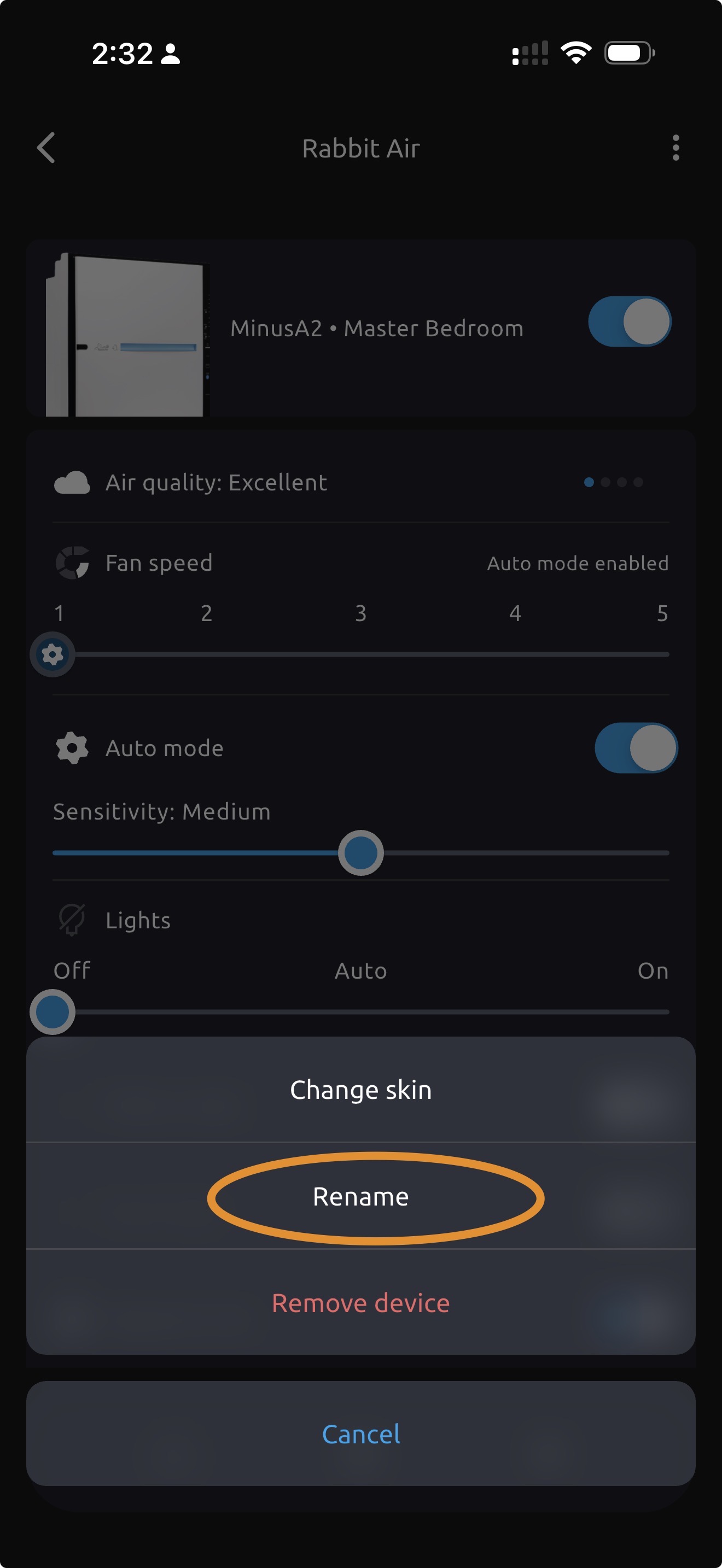
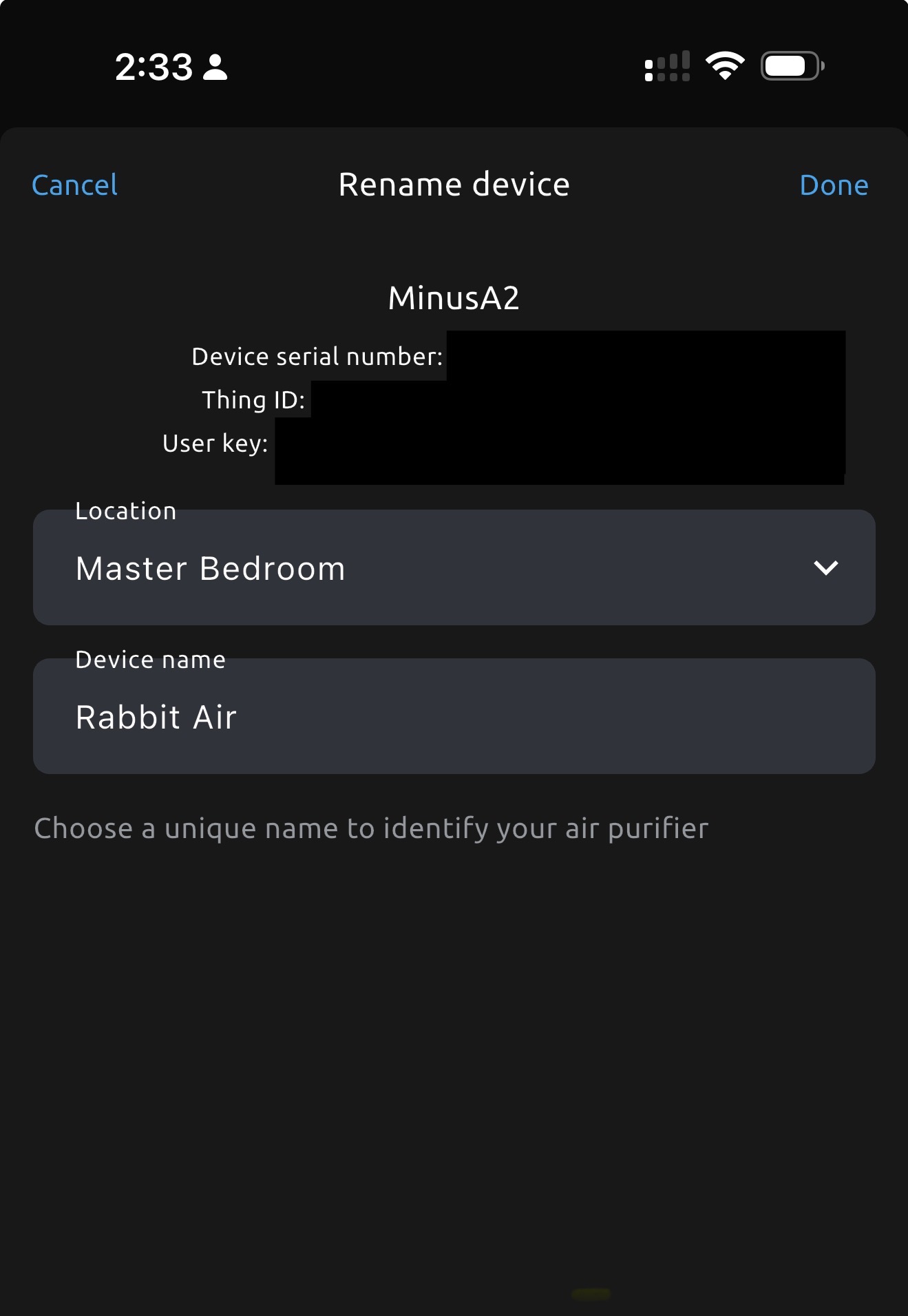
Then use the Thing ID for host and the User key for access_token.
If the app says “your device is not supported”, it probably means that you are trying to connect to a first-generation MinusA2 model (an older hardware revision). It is not yet supported by this integration.
Configuration
To add the Rabbit Air device to your Home Assistant instance, use this My button:

Rabbit Air can be auto-discovered by Home Assistant. If an instance was found, it will be shown as Discovered. You can then set it up right away.
If it wasn’t discovered automatically, don’t worry! You can set up a manual integration entry:
-
Browse to your Home Assistant instance.
-
In the bottom right corner, select the
Add Integration button. -
From the list, select Rabbit Air.
-
Follow the instructions on screen to complete the setup.
Supported functionality
The Rabbit Air integration provides the following entities.
Fans
- Rabbit Air: Turn the air purifier on or off, select the preset mode, or set the speed manually.
Sensors
-
Air quality: Shows the current air quality reported by the device. The sensor can report
lowest,low,medium,high, orhighest.