Automation modes
Sometimes an automation starts again before it has finished its previous run, for example, while it waits in a delay. The mode of the automation tells Home Assistant what to do in that situation: ignore the new start, start over, queue it up, or run another copy in parallel.
Most of the time, the default Single mode is what you want. The other modes are there for special cases, like a notification automation that should run a fresh copy for every event, or a long-running sequence that should restart from the top whenever something changes.
To change the mode of an automation, in the visual automation editor, select Menu
The modes
-
Single (
single): Doesn’t start a new run while the automation is running, and logs a warning. This is the default. -
Restart (
restart): Stops the current run, including a delay or a wait that is running, and starts a new run. The automation only restarts if its conditions are met. -
Queued (
queued): Starts the new run after all previous runs have finished. The runs start in the order in which the automation was started. A new run only joins the queue if the conditions of the automation are met at the moment it starts. -
Parallel (
parallel): Starts a new, independent run right away, next to the previous runs.
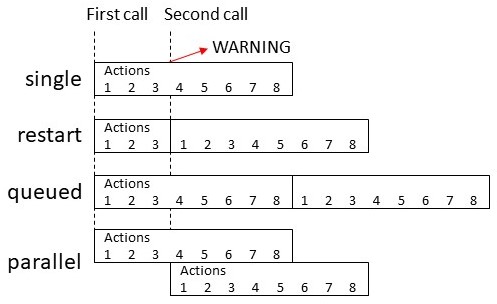
The following diagram shows an automation with 8 actions. It starts a second time when its first run has just finished action 3. Depending on the mode, the following happens:
- Single: The first run continues with actions 4 to 8. The second start doesn’t run, and Home Assistant logs a warning.
- Restart: The first run stops after action 3. A new run starts right away with action 1, and runs all 8 actions.
- Queued: The first run continues with actions 4 to 8. When it has finished, the second run starts with action 1, and runs all 8 actions.
- Parallel: The first run continues with actions 4 to 8. At the same time, a second run starts with action 1, and runs all 8 actions.
Setting the maximum number of runs
For the Queued and Parallel modes, you can set the maximum number of runs. In Queued mode, the limit includes the run that is executing and the runs waiting in the queue. In Parallel mode, it includes all runs executing at the same time. The default is 10, and the minimum is 2.
To set it in the UI, use Queue length or Max number of parallel runs when you change the mode. In YAML, use the max option.
When the automation starts while the maximum is reached, the new run doesn’t start. For the Single mode, the maximum is effectively 1.
Changing the warning in the logs
When a new run can’t start, Home Assistant logs a warning. In the Single mode, the warning is Already running. In the Queued and Parallel modes, it is Maximum number of runs exceeded.
You can log this message at another log level, or not log it at all. The Change mode dialog doesn’t have this option, so you add it in YAML.
-
Go to Settings > Automations & scenes and open the automation.
-
In the top bar, select Menu
, and then select Edit in YAML. -
Add the
max_exceededoption, with the log level that you want. To not log the message at all, usesilent:max_exceeded: silent -
Select Save.
- Result: The next time the automation can’t start a new run, Home Assistant logs the message at this level, or not at all. The default level is
warning.
- Result: The next time the automation can’t start a new run, Home Assistant logs the message at this level, or not at all. The default level is
When a run stops before it finishes
A run of an automation can stop before it reaches its last action, such as while it waits in a delay. The mode decides what happens when the automation starts again during a run. A run can also stop for other causes, for example:
- Cause: Home Assistant restarts, for example, to install an update.
- Result: All runs stop. A delay, a wait, or a trigger duration such as For at least that was in progress is lost. The automation doesn’t continue after the restart.
- Cause: You save a changed automation in the automation editor, or you reload automations after you changed them in YAML.
- Result: A run of a changed automation stops. Automations that you didn’t change keep running.
- Cause: You turn off the automation, for example, with Disable in the automation editor.
- Result: Running actions stop as well. The Turn off automation action has a Stop actions option that lets running actions finish instead.
- Cause: You change the entity ID of the automation.
- Result: Running actions stop.
Replacing a long delay with a timer
Because a restart stops all runs, a long delay inside an automation, for example, of several hours, can get lost. A timer helper keeps its remaining time across a restart. This works when the automation waits only once at a time, and the actions after the delay don’t need information from the trigger, such as which sensor started the automation. If the timer is already running, starting it again restarts the timer. For a fixed time of day, you can instead use a Time trigger.
- Create a timer:
- Go to Settings > Devices & services > Helpers, select Create helper, and then select Timer.
- Enter a Name, and set the Duration to the time the automation should wait.
- Turn on Restore state and time when Home Assistant starts, and select Create.
- In the automation, replace the delay with the Start a timer action for the new timer, and save the automation.
- Create a second automation for the actions that came after the delay:
- As a trigger, add Timer finished for the new timer.
- Add the actions that came after the delay, and save the automation.
- Result: When the timer finishes, the second automation runs the remaining actions, even if Home Assistant restarted in between.
If the timer runs out while Home Assistant is off, the Timer finished trigger doesn’t react when Home Assistant starts again.
For more combinations, refer to Which tool to use.
Example: Throttled automation
Some automations should only run once every 5 minutes, even when they are started more often. To do this, use the Single mode with a delay at the end, and silence the warning for the ignored starts.
automation:
  - mode: single
    max_exceeded: silent
    triggers:
      - ...
    actions:
      - ...
      # Wait 5 minutes before the automation can run again
      - delay:
          minutes: 5
Example: Queued automation
Sometimes an automation controls a device that can’t handle several commands at the same time. Then, use the Queued mode. Each new run waits until the previous runs have finished.
automation:
  - mode: queued
    max: 25
    triggers:
      - ...
    actions:
      - ...