

Picture entity card
The picture entity card displays an entity in the form of an image. Instead of images from URL, it can also show the picture of camera entities.
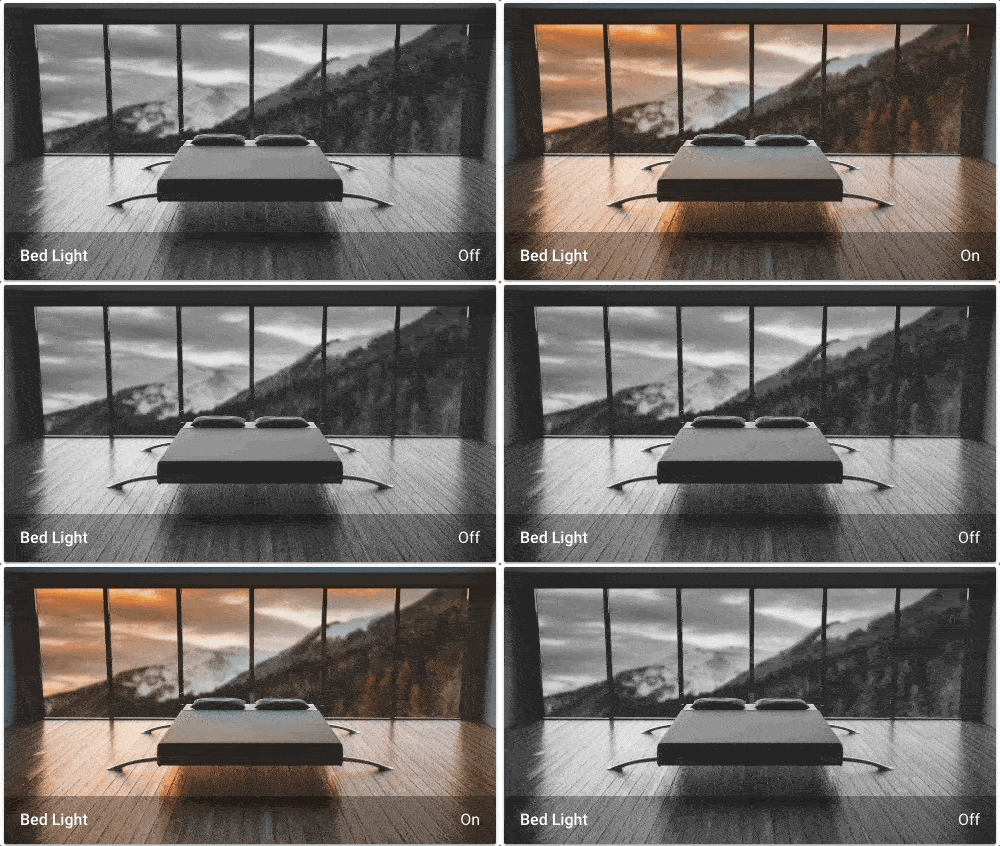 Background changes according to the entity state.
Adding a picture entity card to your dashboard
-
To add a card, follow steps 1-4 on adding a card from a view.
- In step 2, on the By card tab, select picture entity card.
-
Add a picture:
- Upload picture lets you pick an image from the system used to show your Home Assistant UI.
-
Local path lets you pick an image stored on Home Assistant. For example:
/homeassistant/images/lights_view_background_image.jpg.- To store an image on Home Assistant, you need to configure access to files, for example via Samba or the Studio Code Server app (formerly known as add-on).
-
web URL let you use an image from the web. For example
https://www.home-assistant.io/images/frontpage/assist_wake_word.png.
-
Define the parameters that are specific to the picture entity card.
- For a description of the specific settings, refer to the description under YAML configuration.
- They also apply to the UI.
-
Save your changes.
YAML configuration
The following YAML options are available when you use YAML mode or just prefer to use YAML in the code editor in the UI.
Configuration Variables
Entity to display. Camera, image, and person entities are shown as pictures by default.
Use the entity’s entity_picture attribute as the image.
Camera entity_id to use. (not required if entity is already a camera-entity).
URL of an image. To use a locally hosted image, see Hosting, or use a media-source:// URL for Media content.
Forces the height of the image to be a ratio of the width. Valid formats: Height percentage value (23%) or ratio expressed with colon or “x” separator (16:9 or 16x9). For a ratio, the second element can be omitted and will default to “1” (1.78 equals 1.78:1).
Defines the manner in which the image is stretched/clipped to fit the card area. cover: The image keeps its aspect ratio and fills the given dimension. The image will be clipped to fit. contain: The image keeps its aspect ratio, but is resized to fit within the given dimension. fill: The image is resized to fill the given dimension. If necessary, the image will be stretched or squished to fit.
Overwrites friendly name. Can be a string, or a name configuration object. See naming documentation.
Override the used theme for this card with any loaded theme. For more information about themes, see the frontend documentation.
Action taken on card tap. See action documentation.
Action taken on card tap and hold. See action documentation.
Action taken on card double tap. See action documentation.
How to use state_filter
Specify different CSS filters
state_filter:
  "on": brightness(110%) saturate(1.2)
  "off": brightness(50%) hue-rotate(45deg)
Examples
Basic example:
type: picture-entity
entity: light.bed_light
image: /local/bed_light.png
Use an entity’s entity_picture attribute to show an entity-provided image, like an update entity that shows a component logo:
type: picture-entity
entity: update.home_assistant_core_update
show_entity_picture: true
show_state: true
show_name: true
Different images for each state (supports local, web, or media-source:// URLs):
type: picture-entity
entity: light.bed_light
state_image:
  "on": /local/bed_light_on.png
  "off": https://demo.home-assistant.io/stub_config/bedroom.png
  "unavailable": media-source://image_upload/123456789
Displaying a live feed from an FFmpeg camera:
type: picture-entity
entity: camera.backdoor
camera_view: live
tap_action:
  action: perform-action
  perform_action: camera.snapshot
  data:
    entity_id: camera.backdoor
    filename: '/shared/backdoor-{{ now().strftime("%Y-%m-%d-%H%M%S") }}.jpg'
The filename needs to be a path that is writable by Home Assistant in your system. You may need to configure allowlist_external_dirs (documentation).