To-do list card
The to-do list card allows you to add, edit, check-off, and clear items from your to-do list.
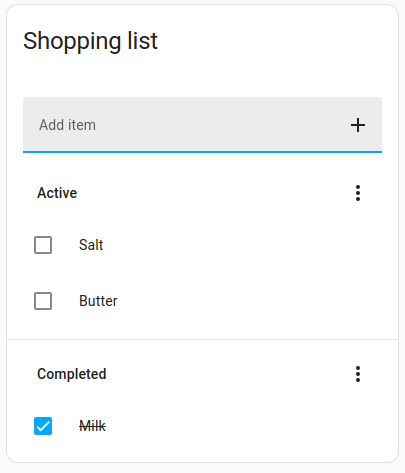 Screenshot of the to-do list card.
Adding the to-do list card to a dashboard
-
Add the card using the Add card button.
- In the By card dialog, select the To-do list card.
- In the Entity dropdown menu, select your list type.
- If it is your first time working with to-do lists, there is only Shopping list in the menu.
- This comes from the shopping list integration, which is installed by default.
- This is the same Shopping list as the one on the To-do list dashboard (accessible via sidebar).
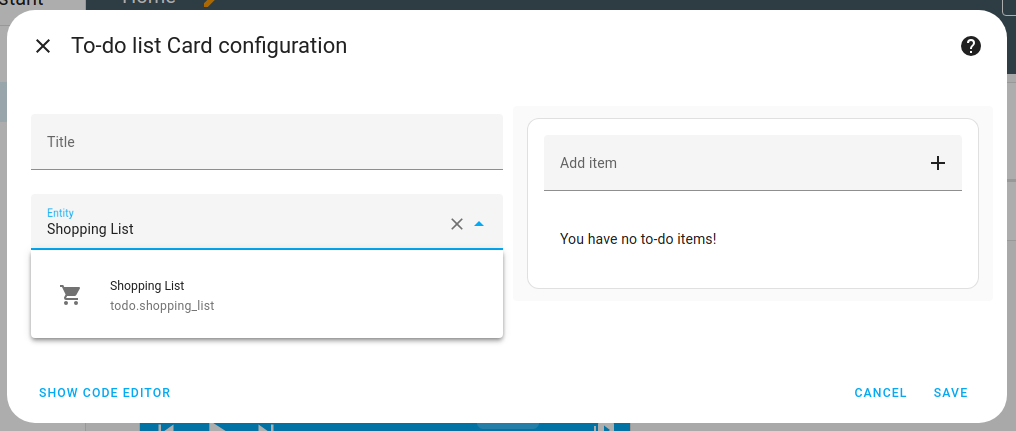 .
.
- The to-do list card can display lists from different to-do list integrations, such as Bring! or Todoist.
- If you don’t see your desired to-do list entity, you need to add its integration first.
- Once you’ve added a to-do list integration, the lists are also available on the to-do list dashboard.
YAML configuration
All options for this card can be configured via the user interface.
The following YAML options are available when you use YAML mode or just prefer to use YAML in the code editor in the UI.
Configuration Variables
Override the used theme for this card with any loaded theme. For more information about themes, see the frontend documentation.
Hide the textbox for creating new tasks at the top of the card.
Hide the ‘Active’ and ‘Completed’ sections with the overflow menus.
Optionally sorts the items in the to-do list for display. Options are: none: Show the list in its original order. alpha_asc: Sort the list in alphabetical order. alpha_desc: Sort the list in reverse alphabetical order. duedate_asc: Sort the list by due date (soonest first). duedate_desc: Sort the list by reverse due date (soonest last).
Defines the behavior when an item’s body is clicked. Options are: edit (opens the edit dialog), toggle (marks or unmarks the item as completed, hiding the edit dialog).
Filters tasks based on their due date. See below.
Options for due date period
Due date filtering can be configured with a calendar object:
Calendar
Use a fixed period with an offset from the current period.
Example, show all tasks due before the end of the current month:
type: todo-list
entity: todo.todo_list
due_date_period:
  calendar:
    period: month
Example, show all tasks due before the end of next week:
type: todo-list
entity: todo.todo_list
due_date_period:
  calendar:
    period: week
    offset: 1
Example, show all tasks due in the next 7 days:
type: todo-list
entity: todo.todo_list
due_date_period:
  calendar:
    period: day
    offset: 6

## Examples

Title example:

```yaml
type: todo-list
entity: todo.todo_list
title: Todo List