Tools
Tools let you look at what is happening in Home Assistant and try things out, without creating an automationAutomations in Home Assistant allow you to automatically respond to things that happen in and around your home. [Learn more] or a dashboard first. For example, you can check the current stateThe state holds the information of interest of an entity, for example, if a light is on or off. Each entity has exactly one state and the state only holds one value at a time. However, entities can store attributes related to that state such as brightness, color, or a unit of measurement. [Learn more] of an entityAn entity represents a sensor, actor, or function in Home Assistant. Entities are used to monitor physical properties or to control other entities. An entity is usually part of a device or a service. [Learn more], control a deviceA device is a model representing a physical or logical unit that contains entities., test a templateA template is an automation definition that can include variables for the action or data from the trigger values. This allows automations to generate dynamic actions. [Learn more], or see which eventsEvery time something happens in Home Assistant, an event is fired. Different types of events are fired when, for example, an entity’s state changes, an action such as light.turn_on is performed, or Home Assistant starts. All entities produce state change events. Every time the state or the attributes of an entity change, a state change event is produced. Events can be used to trigger automations. For example, you can trigger an automation to turn on a speaker in a room when a light in that room turns on. [Learn more] happen. Tools are useful to all administrators, not only those who are developers.
Tools are only available to administrators.
To open Tools, go to Settings > Tools.
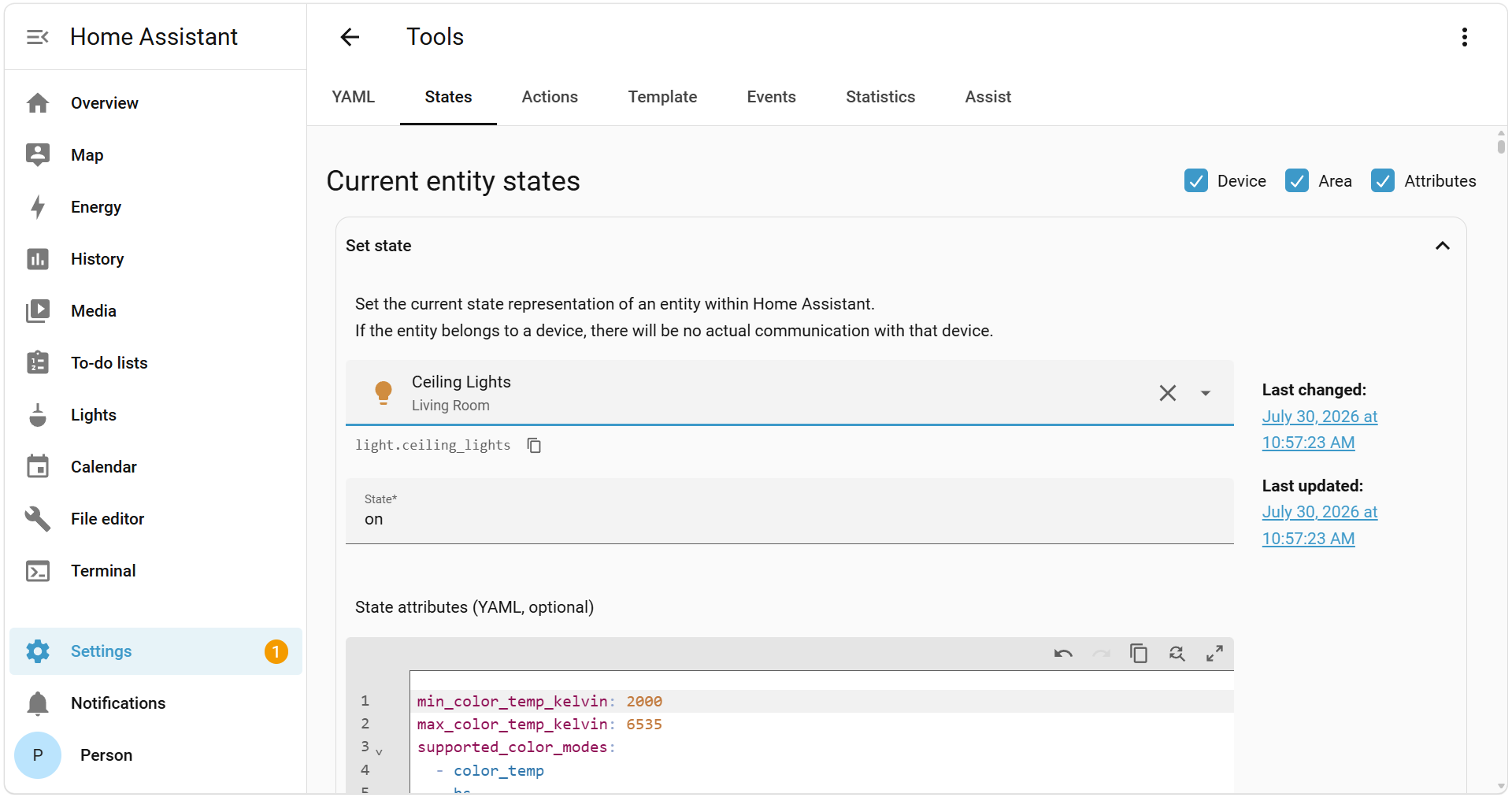 Screenshot of Home Assistant's tools.
The Tools page has the following tabs:
- YAML tab: Check your configuration, reload YAML configuration, and restart Home Assistant.
- States tab: See the current state and attributes of your entities, and set a state to test automations.
- Actions tab: Perform any actionAn action makes Home Assistant do something, for example, turn on a light, send a notification, or activate a scene. Automations and scripts run a list of actions. [Learn more], for example, to control a device.
- Template tab: Write a template and see its result right away.
- Events tab: Fire an event, or listen to events to see what happens.
- Statistics tab: Find, fix, and adjust long-term statisticsHome Assistant keeps statistics for sensors that have a state class, such as measurement, total, or total increasing. Every 5 minutes, it saves short-term statistics, which are deleted after 10 days by default. Every hour, it saves long-term statistics, which are never deleted automatically. The Energy dashboard and statistics cards use them. [Learn more].
- Assist tab: Test how Assist understands a sentence.
YAML tab
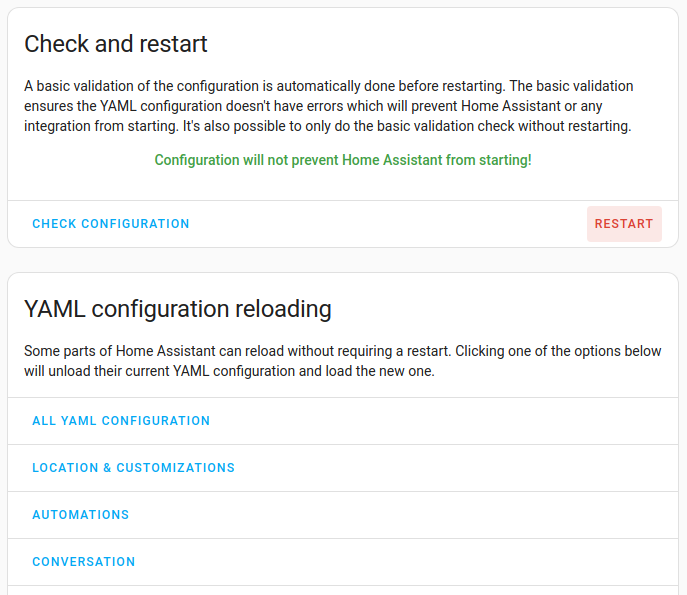
The YAML tab provides buttons to trigger a check of configuration files and to reload the configuration. Reloading is needed to apply changes that you’ve made to the configuration.
It is almost the same as Quick reload, which you open from the power
Reloading the YAML configuration
For configuration changes to become effective, the configuration must be reloaded. Most integrations in Home Assistant (that do not interact with devicesA device is a model representing a physical or logical unit that contains entities. or servicesThe term “service” in Home Assistant is used in the sense of an information
service. For example, the municipal waste management service that provides
entities for organic, paper, and packaging waste. In terms of functionality,
the information service is like a device. It is called service to avoid
confusion, as it does not come with a piece of hardware.) can reload changes made to their configuration in configuration.yamlThe configuration.yaml file is the main configuration file for Home Assistant. It lists the integrations to be loaded and their specific configurations. In some cases, the configuration needs to be edited manually directly in the configuration.yaml file. Most integrations can be configured in the UI. [Learn more] without needing to restart Home Assistant.
-
Go to Settings > Tools > YAML and scroll down to the YAML configuration reloading section. Alternatively, select the C key from anywhere in the UI to open the command palette of the quick search and then search for
reload.- You are presented with a list of integrations, such as Automations or Conversation.
-
Depending on what you find in the list, you can proceed with either reloading or you need to restart Home Assistant:
- If the integration is listed, select it to reload the settings.
- For example, if you’ve changed the General settings, you can select Location & customizations to apply those changes.
- If the integration is not listed, you need to Restart Home Assistant for changes to take effect.
- If the integration is listed, select it to reload the settings.
States tab
The States tab lists all your entitiesAn entity represents a sensor, actor, or function in Home Assistant. Entities are used to monitor physical properties or to control other entities. An entity is usually part of a device or a service. [Learn more], with their current stateThe state holds the information of interest of an entity, for example, if a light is on or off. Each entity has exactly one state and the state only holds one value at a time. However, entities can store attributes related to that state such as brightness, color, or a unit of measurement. [Learn more] and attributes. This is what Home Assistant sees at that moment.
You can also set the state of an entity here. This only changes what Home Assistant shows. It does not control the deviceA device is a model representing a physical or logical unit that contains entities.. For example, setting light.bedroom from off to on does not turn on the light. AutomationsAutomations in Home Assistant allow you to automatically respond to things that happen in and around your home. [Learn more] with a triggerA trigger is the part of an automation that makes the automation start when something specific happens, for example, when the sun sets, a door opens, or a button is pressed. [Learn more] on that state change still start, though, which makes this useful for testing. The change is temporary: the next time the device reports its state, Home Assistant shows the real state again. To control a device, perform an actionAn action makes Home Assistant do something, for example, turn on a light, send a notification, or activate a scene. Automations and scripts run a list of actions. [Learn more] in the Actions tab instead.
Filtering the list of entities
The list can contain hundreds of entitiesAn entity represents a sensor, actor, or function in Home Assistant. Entities are used to monitor physical properties or to control other entities. An entity is usually part of a device or a service. [Learn more]. To find the entity you are looking for, or to check which entities have a certain stateThe state holds the information of interest of an entity, for example, if a light is on or off. Each entity has exactly one state and the state only holds one value at a time. However, entities can store attributes related to that state such as brightness, color, or a unit of measurement. [Learn more] or attribute, filter the list. For example, you can show all lightsA light has a brightness you can control, and optionally color temperature or RGB color control. [Learn more] that are on, or all entities in one areaAn area in Home Assistant is a logical grouping of devices and entities that represents a room or space in your home, such as the living room, kitchen, or garage. [Learn more].
- Go to Settings > Tools > States.
- Optional: To show more columns, select Device, Area, or Attributes above the list. These options are not shown on narrow screens.
- In the filter field above a column, enter the text you are looking for.
- The filters are not case-sensitive and match any part of the text. To use a wildcard, enter
*, for example,office*light. - Filter entities matches the entity ID and the name of the entity.
-
Filter attributes matches the names and the values of attributes. To filter for a specific attribute, enter its name and value separated by a colon. For example,
location:3shows the entities with an attribute whose name containslocationand whose value contains3. - Result: The list only shows the entities that match all filters.
- The filters are not case-sensitive and match any part of the text. To use a wildcard, enter
Setting the state of an entity
Use this to test how automations react to a state change, without changing the device.
Risk of unintended device actions
Setting a state starts every automation with a trigger on that state change. Those automations control real devices and services.
To avoid this:
-
Before you set the state, check which automations react to this entity.
-
Turn off any of these automations that you don’t want to run.
- Go to Settings > Tools > States.
- In the list, select the entity ID. Or, in the Set state section at the top, select Select an entity and choose the entity.
- Result: The Set state section shows the current state and attributes of the entity.
- Under State, enter the new state. To test a trigger, reproduce the change it reacts to, as set in its From and To options. If the entity already has the new state, set it to a different state first. Setting the same state again is not a state change, so the trigger does not react.
- Optional: Under State attributes (YAML, optional), change the attributes.
- Select Set state.
- Result: Home Assistant shows the new state, and automations with a trigger on that state change start. The device does not change.
- Optional: To load the current state of the entity into the form again, select Refresh
.
Actions tab
The Actions tab lets you perform any actionAn action makes Home Assistant do something, for example, turn on a light, send a notification, or activate a scene. Automations and scripts run a list of actions. [Learn more] available in Home Assistant, without creating an automationAutomations in Home Assistant allow you to automatically respond to things that happen in and around your home. [Learn more] or a scriptA script is a saved list of steps that runs when you start it, for example, from a dashboard, with Assist, or from an automation. Unlike an automation, a script has no triggers, so it doesn’t start by itself. [Learn more]. Use it to control a deviceA device is a model representing a physical or logical unit that contains entities. directly, to try out an action and its options before you use it in an automation, or to see the data that an action returns.
The list of actions contains the actions of all integrationsIntegrations connect and integrate Home Assistant with your devices, services, and more. [Learn more] that are set up, and your scripts. If an action is missing, the integration that provides it is not set up, or not set up correctly.
Most actions work on a target, such as an entityAn entity represents a sensor, actor, or function in Home Assistant. Entities are used to monitor physical properties or to control other entities. An entity is usually part of a device or a service. [Learn more], a device, or an areaAn area in Home Assistant is a logical grouping of devices and entities that represents a room or space in your home, such as the living room, kitchen, or garage. [Learn more]. Check the action’s options before omitting the target because some actions target all supported entities when no target is selected.
Performing an action
- Go to Settings > Tools > Actions.
- In the Action dropdown list, select the action. The list shows the name of each action, with its integration on the right. For example, to turn on a light, select Turn on light, with Light next to it. You can also search by name, integration, or action ID, such as
light.turn_on.- Result: The options of the action are shown.
- If the action accepts a target, select Add target, and then select what you want to control, for example, an entity or an area.
- Fill in the options that you need.
- Select Perform action.
- Result: The action runs. If the action returns data, the data is shown under Response. To use the data in a template, select Copy to clipboard as template.
Performing an action in YAML mode
Some options, and templatesA template is an automation definition that can include variables for the action or data from the trigger values. This allows automations to generate dynamic actions. [Learn more], are only available in YAML mode. In UI mode, these options are listed under Parameters only available in YAML mode.
-
Go to Settings > Tools > Actions, and select the action in the Action dropdown list.
-
Select YAML mode.
- Result: The action is shown in YAML. Below it, All available parameters lists all options of the action.
-
Edit the YAML. To fill in example values, select Fill example data.
-
For example, to turn on a light at full brightness in red:
action: light.turn_on
target:
  entity_id: light.bedroom
data:
  brightness: 255
  rgb_color: [255, 0, 0]
-
-
Select Perform action.
- Result: The action runs. If the action returns data, the data is shown under Response.
Template editor tab
TemplatesA template is an automation definition that can include variables for the action or data from the trigger values. This allows automations to generate dynamic actions. [Learn more] let you create dynamic content from your Home Assistant data, for example, a notification that lists which lights are on. In the Template tab, you can write a template and see its result right away, based on the current statesThe state holds the information of interest of an entity, for example, if a light is on or off. Each entity has exactly one state and the state only holds one value at a time. However, entities can store attributes related to that state such as brightness, color, or a unit of measurement. [Learn more] of your entitiesAn entity represents a sensor, actor, or function in Home Assistant. Entities are used to monitor physical properties or to control other entities. An entity is usually part of a device or a service. [Learn more]. Use it to try out a template before you use it in an automationAutomations in Home Assistant allow you to automatically respond to things that happen in and around your home. [Learn more], a scriptA script is a saved list of steps that runs when you start it, for example, from a dashboard, with Assist, or from an automation. Unlike an automation, a script has no triggers, so it doesn’t start by itself. [Learn more], or a template entity. For an introduction to templates, refer to Templating.
The result updates while you type, and when the states that the template uses change. Below the result the editor shows when the template updates:
- At the start of each minute, if the template uses the current time.
- When one of the listed entities or domains changes.
- When any state changes, if the template uses all states.
- Not automatically, if the template does not use any states or the current time.
Your template is kept in your browser, so it is still there the next time you open the tab.
Testing a template
Use this to check that a template gives the result you expect, before you use it elsewhere.
- Go to Settings > Tools > Template.
- In the Template editor, enter your template.
- The editor starts with a demo template. To start with an empty editor, in the toolbar of the editor, select Clear
. To go back to the demo template, select Reset to demo template . - To get suggestions, for example, for entity IDs, place the cursor inside a function that supports it, and press Ctrl+Space.
- The editor starts with a demo template. To start with an empty editor, in the toolbar of the editor, select Clear
- If your template uses variables that only exist when it runs in an automation or an integration, such as
trigger,this, orvalue_json, at the top of the template, define them yourself with{% set %}. If you don’t, the editor shows an error, or a warning and an empty result. To see an example, refer to testing an incoming-data template. For details, refer to Why does my template behave differently in Tools?. - Under Result, check the output.
- Result: The output of your template is shown, with its Result type. If the template has an error, the error message is shown instead. For warnings and other problems, refer to Debugging templates.
- When the template works, remove the variables you defined in step 3, if any. They would replace the real values when the template runs.
- In the toolbar, select Copy to clipboard
. Then paste the template into your automation, script, or template entity.
Events tab
EventsEvery time something happens in Home Assistant, an event is fired. Different types of events are fired when, for example, an entity’s state changes, an action such as light.turn_on is performed, or Home Assistant starts. All entities produce state change events. Every time the state or the attributes of an entity change, a state change event is produced. Events can be used to trigger automations. For example, you can trigger an automation to turn on a speaker in a room when a light in that room turns on. [Learn more] are how Home Assistant announces that something has happened. In the Events tab, you can fire an event yourself, or listen to events to see what happens and which data an event contains. For more information about events, refer to Events.
- Fire an event to test an automationAutomations in Home Assistant allow you to automatically respond to things that happen in and around your home. [Learn more] with a Manual event received triggerA trigger is the part of an automation that makes the automation start when something specific happens, for example, when the sun sets, a door opens, or a button is pressed. [Learn more], without waiting for the event to happen.
- Listen to an event to find out its event type and data, so you can set up a trigger that reacts to it. Many integrations describe their events in their documentation.
Firing an event
Use this to test how automations react to an event, without waiting for the event to happen.
Risk of unintended device actions
Firing an event starts every automation with a trigger on that event. Those automations control real devices and services.
To avoid this:
-
Before you fire the event, check which automations react to it.
-
Turn off any of these automations that you don’t want to run.
- Go to Settings > Tools > Events.
- Under Event type, enter the event type. You can also select an event type under Active listeners. This list shows the event types that something in Home Assistant is listening to.
- Optional: Under Event data (YAML, optional), enter the data of the event. To test a trigger that filters on event data, enter at least the same data as in the trigger. Additional data does not matter.
- Select Fire event.
- Result: Home Assistant fires the event, and automations with a trigger on that event start.
For example, to fire a custom event, enter the event type event_light_state_changed and the following event data:
state: on
The following automation reacts to that event:
- alias: "Capture Event"
  triggers:
    - trigger: event
      event_type: event_light_state_changed
  actions:
    - action: notify.notify
      data:
        message: "Light is turned {{ trigger.event.data.state }}"
Listening to events
Use this to see which events happen and what data they contain. For example, listen for events to find out which event a button sends when you press it, so you can set up a trigger that reacts to it. Listening doesn’t change anything in Home Assistant.
- Go to Settings > Tools > Events.
- Under Listen to events, in Event to subscribe to, enter the event type.
- If you don’t know the event type, enter
*to listen to all events. This shows many events, and only the latest 100 are kept, so use Filter events in the next step to narrow them down. - You can also find event types under Active listeners, on the events page, or in the documentation of the integration.
- If you don’t know the event type, enter
- Optional: To only capture events that contain a certain text, enter it under Filter events, for example, the name of the device. The filter is case-sensitive, and matches both the names and the values in the event. This is useful when you want to listen to all events.
- Select Start listening.
- Make the event happen, for example, by pressing the button.
- Result: Each event that happens is shown in YAML, with its event type and data. The list keeps the latest 100 events. To move between events, use the buttons next to the event.
- To stop, select Stop listening. To remove the events from the list, select Clear events.
Listening to events: example
For example, listening to the event type shelly.click of the Shelly integration shows data similar to the following when you press a button:
event_type: shelly.click
data:
  device_id: e09c64a22553484d804353ef97f6fcd6
  device: shellybutton1-A4C12A45174
  channel: 1
  click_type: single
origin: LOCAL
time_fired: "2021-04-28T08:53:12.755729+00:00"
context:
  id: e0f379706563aaa0c2c1fda5174b5a0e
  parent_id: null
  user_id: null
Statistics tab
Home Assistant keeps long-term statisticsHome Assistant keeps statistics for sensors that have a state class, such as measurement, total, or total increasing. Every 5 minutes, it saves short-term statistics, which are deleted after 10 days by default. Every hour, it saves long-term statistics, which are never deleted automatically. The Energy dashboard and statistics cards use them. [Learn more] for sensors that measure something over time, such as temperature or energy use. Some integrationsIntegrations connect and integrate Home Assistant with your devices, services, and more. [Learn more] also add statistics directly, without a sensor, for example, the energy use that your utility reports. Home Assistant stores statistics in its database, which the Recorder maintains. History graphs, statistics cards, and the Energy dashboard use these statistics. The Statistics tab lists all long-term statistics, with their name, statistic ID, unit, source, and any issue. For how statistics work, refer to Long-term statistics.
Use the Statistics tab to:
- Find the statistics that an integrationIntegrations connect and integrate Home Assistant with your devices, services, and more. [Learn more] created, for example, to use them in the Energy dashboard.
- Fix an issue that stops Home Assistant from keeping statistics for an entity.
- Correct a wrong value, for example, a spike in your energy use.
- Delete statistics that you no longer need.
Fixing a statistics issue
If Home Assistant can’t keep statistics for an entity, the Issue column shows why. For example, the entity is no longer recorded, or its unit changed.
Risk of data loss
Some fixes delete the statistics of the entity. Deleted statistics can’t be restored, except from a backup.
To avoid this:
-
Read the dialog carefully before you select Delete.
-
Before you delete statistics, create a backup.
To fix a statistics issue
- Go to Settings > Tools > Statistics.
- In the row of the statistic with the issue, select Fix issue. If Home Assistant can’t fix the issue for you, the button is called Info instead.
- Result: A dialog explains the issue and what you can do about it.
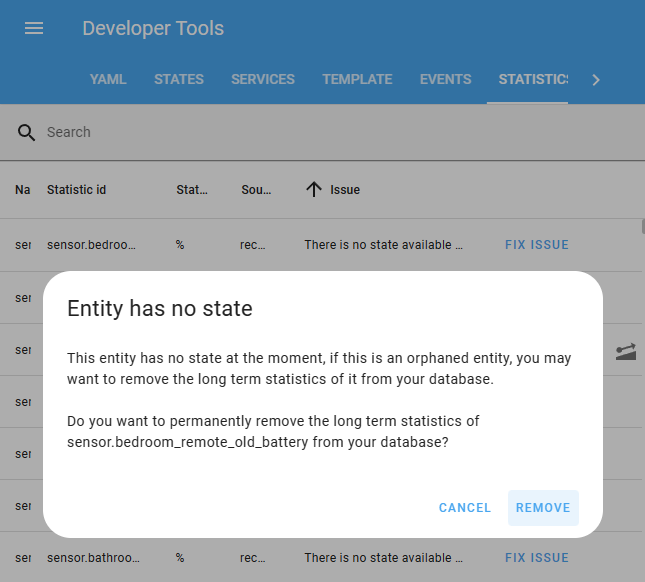
- Result: A dialog explains the issue and what you can do about it.
- Follow the instructions in the dialog. What you can do depends on the issue:
- If the unit changed, update the unit of the old statistics without converting the values. Or delete the old statistics, so Home Assistant can start over.
- If the mean type changed, delete the old statistics, so Home Assistant can start over.
- If the entity has no state, for example, because you removed its device, you can delete its old statistics.
- If the entity is not recorded, or no longer recorded, include it in the Recorder again, so Home Assistant can keep statistics for it. If the entity is no longer recorded and you don’t need its old statistics, you can delete them.
- If the entity no longer has a state class, Home Assistant can’t keep statistics for it until the state class is back. If you set the state class yourself, correct it. If the integration provided it, report an issue to the integration. If you no longer need the old statistics, you can delete them.
- Result: The issue is no longer shown in the list. After you delete statistics, it can take a moment for the issue to disappear.
Adjusting a statistic
Sometimes a statistic has a wrong value at one point in time, for example, after a meter resets, or when a sensor reports a wrong reading. This shows up as a spike in graphs and in the Energy dashboard. You can correct the value. This works for statistics that add up over time, such as energy or water use.
To adjust a statistic
- Go to Settings > Tools > Statistics.
- In the row of the statistic, select Adjust sum
. If this button is not shown, the statistic can’t be adjusted. - Result: The Adjust a statistic dialog shows the changes around the current time.
- Find the wrong value:
- To see the 10 largest changes in the history of the statistic, select Outliers. A spike is usually one of them.
- To look at a specific moment, under Pick a time, enter the date and time. The dialog shows up to five changes around that time.
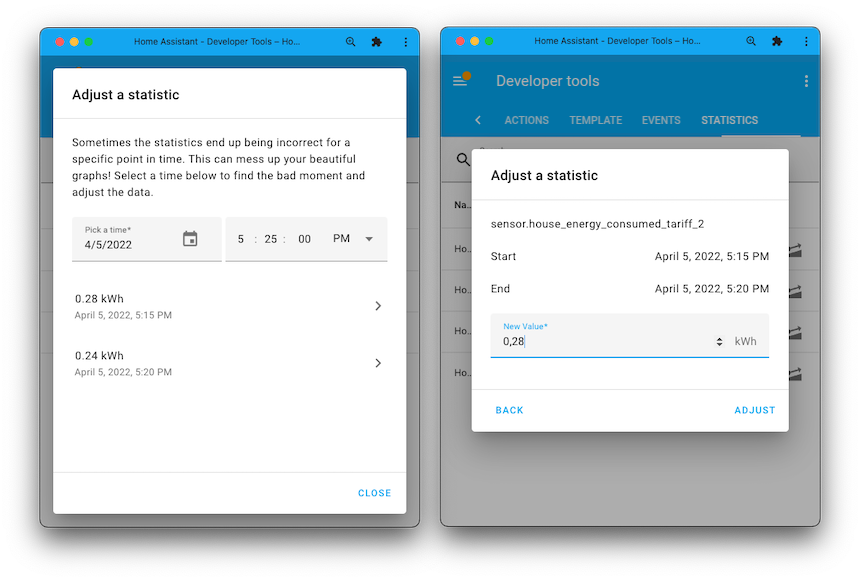
- Select the wrong value.
- Under New value, enter the correct change for that period, not the meter reading. For example, enter
0for a spike after a meter reset.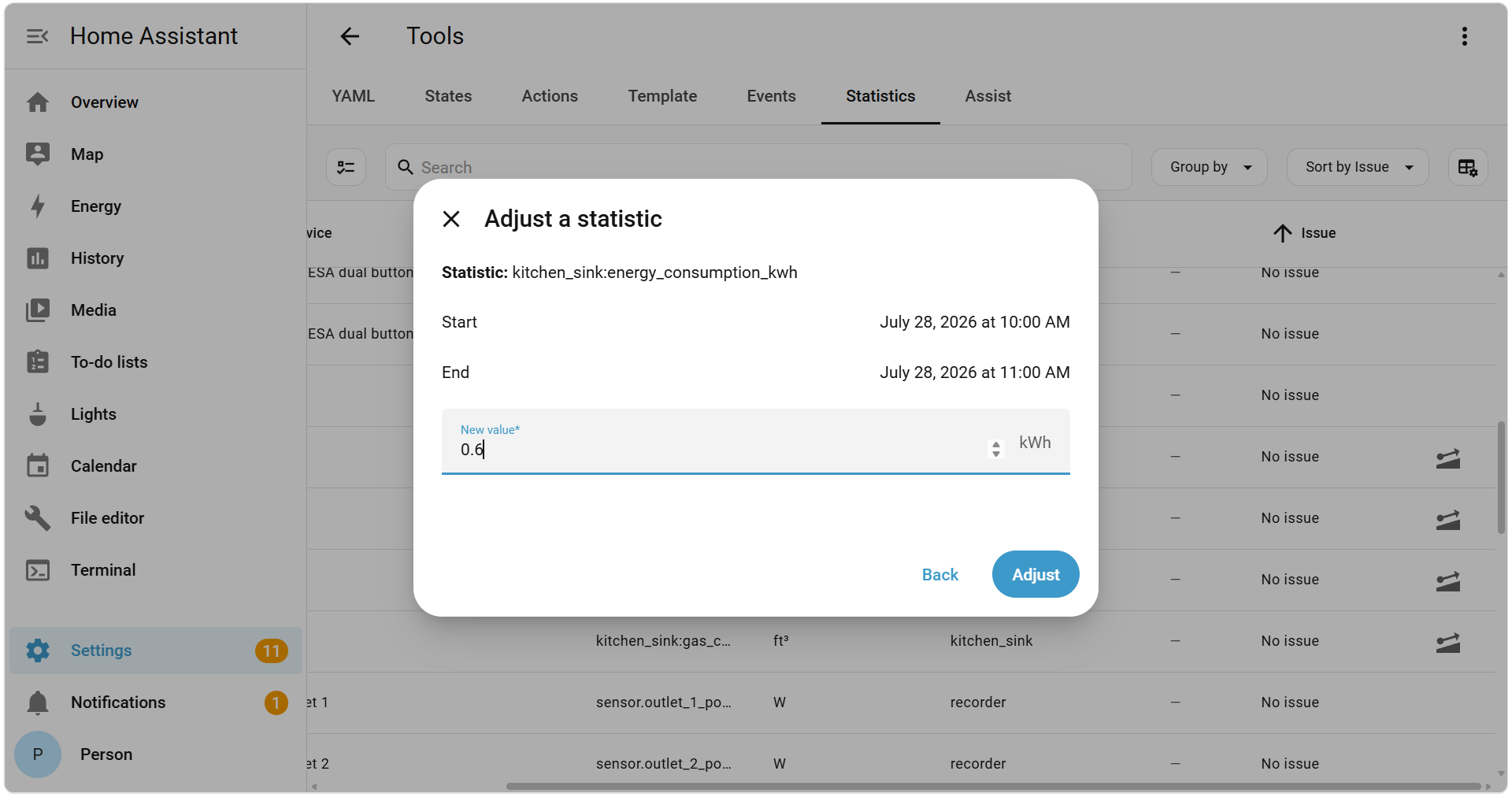
- Select Adjust.
- Result: The value is corrected, and the graphs show the new value.
Deleting statistics
Use this to remove statistics that you no longer need, for example, of a device or an integration that you removed.
Risk of data loss
Deleted statistics can’t be restored, except from a backup.
To avoid this:
-
Check that you selected the right statistics.
-
Before you delete statistics, create a backup.
To delete statistics
- Go to Settings > Tools > Statistics.
- Next to the search field, select Enter selection mode
. - Select the statistics that you want to delete. To select all statistics with an issue, open the selection menu and select Select all with issues.
- Select Delete selected statistics, and then select Delete.
- Result: The statistics are deleted from the database.
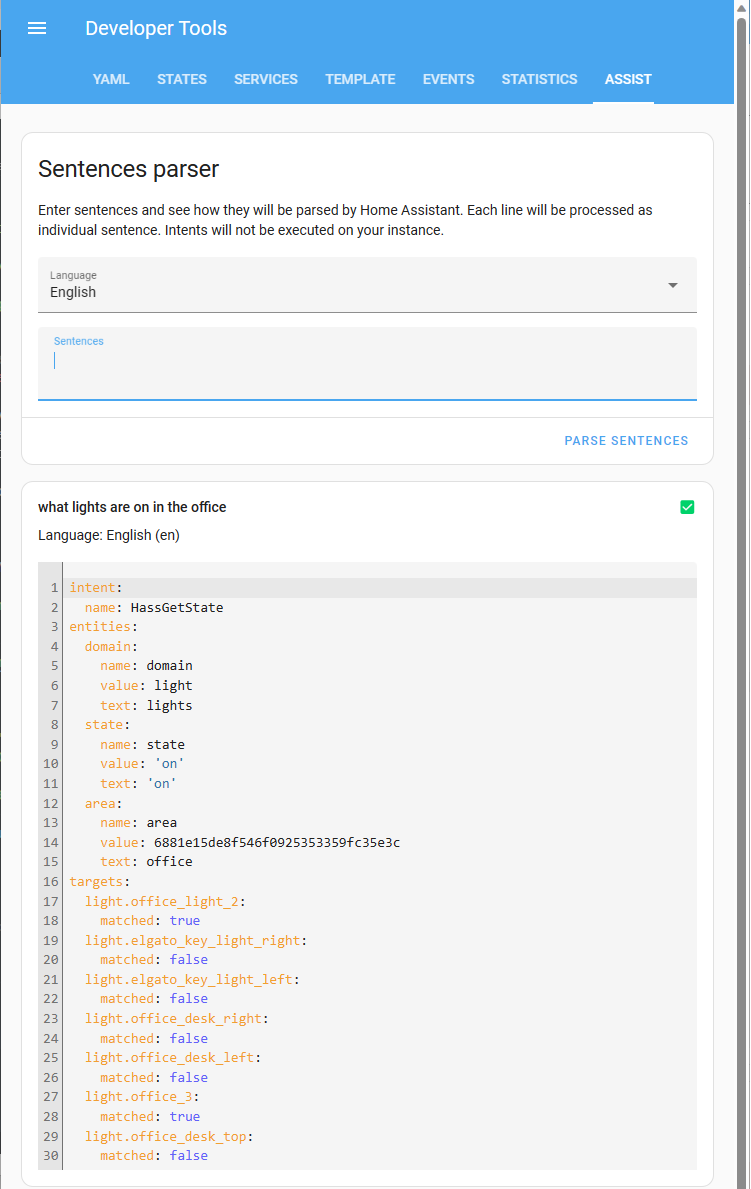
Assist tab
The Assist tab lets you test how Assist understands a sentence, without running anything. Home Assistant checks the sentence against the built-in sentences, your custom sentences, and the sentence triggers of your automationsAutomations in Home Assistant allow you to automatically respond to things that happen in and around your home. [Learn more], and shows what matches. No actionAn action makes Home Assistant do something, for example, turn on a light, send a notification, or activate a scene. Automations and scripts run a list of actions. [Learn more] runs, and no automation starts. Use it to find out why Assist doesn’t understand a sentence, or to check a new sentence before you use it.
The Assist tab only tests the built-in Home Assistant conversation agent. If your assistant uses another conversation agent, such as an AI agent, test the sentence in the debug view instead.
Testing a sentence
- Go to Settings > Tools > Assist.
- Under Language, select the language of the sentence.
- Under Sentences, enter the sentence. To test several sentences at once, enter each sentence on its own line. To start a new line, press Shift+Enter.
- The Assist tab doesn’t know which device you’re talking to. If a sentence relies on the area of your voice assistant, such as turn on the lights, add the area, for example, turn on the lights in the kitchen.
- Select Parse sentences, or press Enter.
- Result: The result of each sentence is shown, with the newest on top. If Assist doesn’t understand a sentence at all, No intent matched is shown. Otherwise, the details are shown in YAML.
- Check the details of the result:
-
match:trueif Assist understands the whole sentence.falseif the sentence is close to a known sentence, but a part of it doesn’t match, for example, the name of an entity or an area. In that case,unmatched_slotsshows which part doesn’t match. The ✅ next to the sentence only means that a result was found, so always checkmatch. -
source: Where the matching sentence comes from:builtinfor the built-in sentences,customfor your custom sentences, with thefilethey are in, ortriggerfor a sentence trigger of an automation. -
intent: The name of the intent that the sentence matches, for example,HassTurnOn. -
slotsanddetails: The parts of the sentence that Assist recognized, such as the name of an area or an entity. -
targets: The entities that the sentence is about. For a question, such as what lights are on,matched: truemarks the entities whose state fits the question. -
sentence_template: The sentence pattern that matches your sentence.
-
- Optional: To save the results as a file, select Download results. To remove the results, select Clear.
For example, for the sentence what lights are on in the office, Assist matches the intent HassGetState, recognizes the domain light, the state on, and the area office, and lists the lights in that area as targets. The lights that are on are marked with matched: true.