2026.6: Pick a card, any card
 Franck Nijhof
Home Assistant 2026.6! 🎉
I’m going to put my hand up right away: ✋ I am not a dashboard person. Not because I don’t like them; I love seeing what you all build. But designing a beautiful one is a kind of visual creativity I just don’t have. That’s a big part of why I love the built-in Home dashboard so much, it does the designing for me. But when I do build a custom dashboard, I usually stare at that “add a card” dialog for way too long, picking cards almost at random just to see if they look good with the data I have.
So you can imagine my excitement for my personal favorite of this release: the new card picker. Instead of asking “which card type do I want?”, it now asks “which thing in your home do you want to show?”, and then suggests cards that actually make sense for it, with live previews using your own data. For someone like me, that’s not just easier; it’s genuinely inspiring. It nudges me towards combinations I would not have thought of on my own. 💡
This fits into a bigger direction I keep getting more excited about: Home Assistant getting better at starting from the thing you want to do, instead of asking you to first learn the building blocks. The same idea is what makes purpose-specific triggers and conditions in Home Assistant Labs feel so right, and this release brings them a big step closer to graduating out of Labs with brand new zone triggers and conditions. 📍
A close second favorite for me this release is everything happening around that in the automation editor: live test indicators on your conditions, target counts on every device, area, floor, and label, and proper notes you can attach to any step. Individually they are small quality-of-life touches; together, they make building automations feel a whole lot more transparent. ✨
And there is plenty more to love in this release: new tile card features, Z-Wave smart locks catching up with their Matter siblings, a friendlier Apps page, and another big batch of new integrations from our community. 🚀
Enjoy the release!
../Frenck
- A friendlier way to add cards to your dashboard
- Infrared now also listens
- Polishing the automation editor
- Tile card features
- Z-Wave smart lock credential management
- A fresh look for the Apps page
- Integrations
- Other noteworthy changes
- Patch releases
- Need help? Join the community
- Backward-incompatible changes
- All changes
A huge thank you to all the contributors who made this release possible! And a special shout-out to @piitaya who helped write the release notes this release. Also, @karwosts, @lexpostma, and @Petro31 for putting effort into tweaking its contents. Thanks to them, these release notes are in great shape. ❤️
A friendlier way to add cards to your dashboard
Adding a card to a dashboard is one of those moments where Home Assistant has historically asked a lot of you. The old dialog opened on a wall of card types, all named after the building blocks we use under the hood: tile, entities, button, gauge, glance, picture, markdown, and so on. Lovely if you already know what each one does. A lot less lovely if you came in thinking “I just want my living room light on this dashboard.” 💡
User research kept telling us the same thing: people open the editor with a deviceA device is a model representing a physical or logical unit that contains entities. or an entityAn entity represents a sensor, actor, or function in Home Assistant. Entities are used to monitor physical properties or to control other entities. An entity is usually part of a device or a service. [Learn more] in mind, not a card type. So we flipped the dialog around.
When you add a card now, the dialog opens on a new By entity tab. On the left, your home: a tree of floorsA floor in Home Assistant is a logical grouping of areas that are meant to match the physical floors in your home. Devices & entities are not assigned to floors but to areas. Floors can be used in automations and scripts as a target for actions. For example, to turn off all the lights on the downstairs floor when you go to bed. [Learn more], areasAn area in Home Assistant is a logical grouping of devices and entities that represents a room or space in your home, such as the living room, kitchen, or garage. [Learn more], devices, and entities, the same shape some of you may recognize from the new purpose-specific triggers and conditions currently in Settings > System > Labs. Anything that doesn’t fit cleanly into your areas shows up under Unassigned, so nothing gets lost. Search jumps straight to a flat result list.
Pick an entity, and the right side fills with live previews of cards that actually fit it, not a generic list:
- For a light, you get a plain tile, a tile with a brightness slider, a toggle tile, color temperature, and favorite colors.
- For a cover, open/close, a position slider, and tilt.
- For a media player, a tile with playback controls or with the volume slider.
- For a numeric sensor like temperature, humidity, or power, a trend graph tile so you can see history at a glance.
- For a calendar or to-do list, the matching dedicated card.
- And a Browse all cards option in case none of those is what you wanted; the familiar By card tab is still there too, unchanged.
Every suggestion renders as a real preview of how the card will look on your dashboard, with your data, before you pick it. No more “add it, see how it looks, delete it, try the next one.”
Custom cards can join the party too. If a custom card you have installed has opted in to the new picker, its suggestions show up under a separate Community section, right below the built-in ones. Support depends on the custom card’s author adding it.
On mobile, the same dialog turns into a two-step flow: pick your entity, then pick your card.
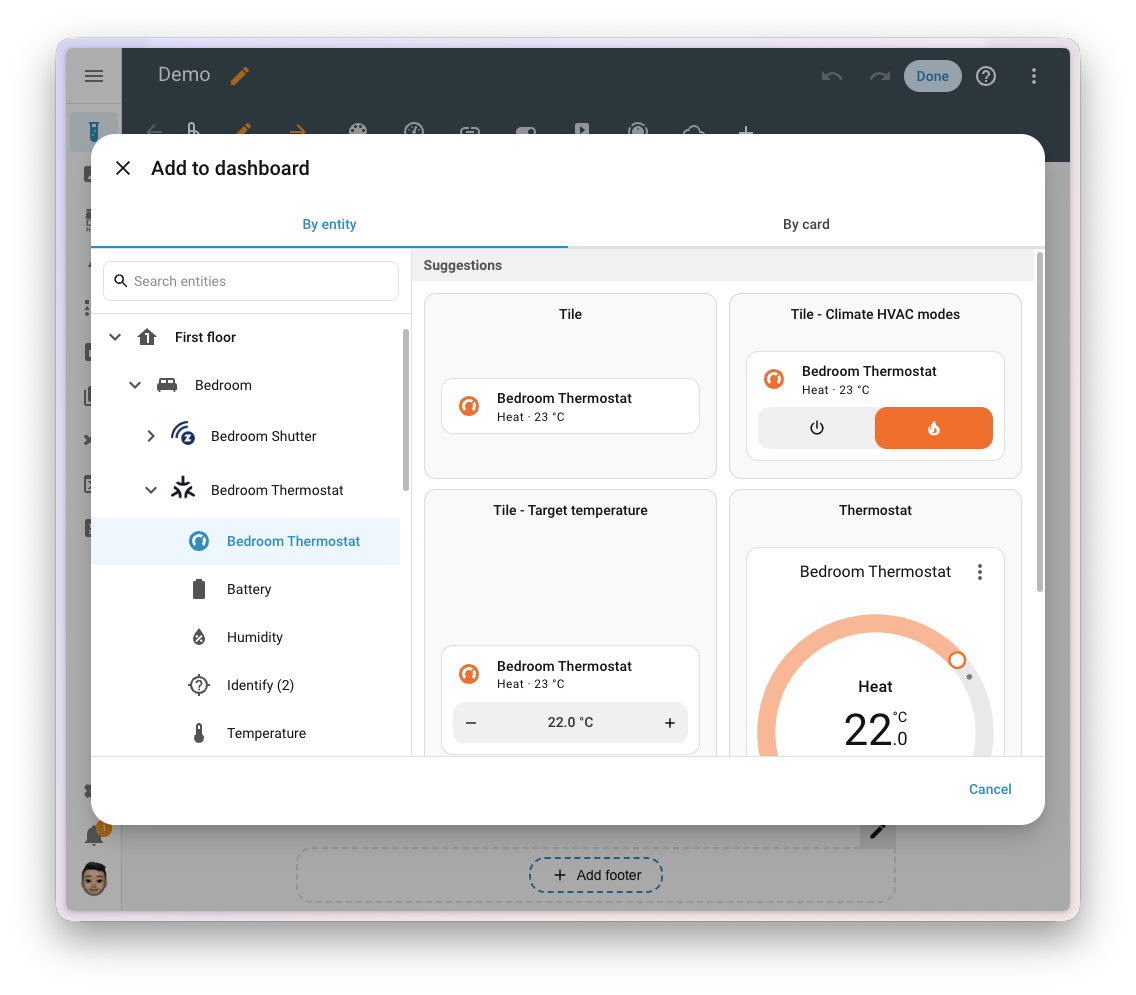
This is the first visible step of a broader effort on the Open Home Foundation roadmap to make building a dashboard feel as natural as building an automation: start from what you want to control, and let Home Assistant suggest the rest. Expect more in this direction in the releases to come.
Maintain a custom card? You can opt in to the new picker by adding a getEntitySuggestion function to your window.customCards entry. The developer blog post Custom card suggestions in the card picker walks through the details.
Infrared now also listens
Two releases ago, infrared became a first-class citizen of Home Assistant, but as a one-way street: Home Assistant could send commands to your TV or air conditioner, but it had no way to hear what the device, or its original remote, was doing. The most asked-for follow-up was simple: “can Home Assistant also listen?” 📡
In this release, it does.
The Infrared platform gains a new receiver event entityAn event entity represents a momentary occurrence without a lasting state, for example, when you press a doorbell or a button on a remote control. Instead of a state such as on or off, the event entity keeps track of when the last event was detected and its event type, such as a single press or a long press. [Learn more]. Any transmitter integration that supports it can expose the IR commands it picks up as events in Home Assistant, ready to drive automations just like any other event trigger. ESPHome is the first transmitter integration on board, so any ESPHome device with an IR receiver wired up can now act as an IR listener for your whole house. On the device side, LG Infrared is the first device integration to use it, exposing the commands its receiver sees as events you can react to.
This means you can keep Home Assistant in sync with the original remote: use the remote that came with the device, and Home Assistant sees it happen instead of being left in the dark with stale state. It also opens the door for future integrations to do more with what they hear, like turning a spare IR remote into a Home Assistant controller.
This is the second half of the infrared story we started two releases ago, making infrared a true two-way platform in Home Assistant. It also closes out the Open Home Foundation roadmap opportunity that set out to make infrared a two-way platform in Home Assistant.
Polishing the automation editor
Ever since Home Assistant 2025.12 introduced purpose-specific triggers and conditions, every release has nudged the automation editor a little closer to how you actually think about your home. The work in Labs is ongoing, and feedback keeps pouring in. While we keep iterating there, the rest of the automation editor has been getting some love too. ✨
Purpose-specific triggers and conditions
The Labs preview keeps growing, both in capabilities and polish. This release picks up where last month left off: the cross-domain successors to the old Person and Device Tracker home triggers and conditions have landed, this time built around zones. 📍
Four new zone triggers and four new zone conditions cover the same ground the removed entered_home, left_home, is_home, and is_not_home building blocks did, but in a more flexible way:
- Triggers to react when a person or device trackerDevice trackers are used to track the presence, or location, of a device. [Learn more] enters or leaves a zoneZones allow you to specify certain regions on a map. They enable zone presence-detection and can be used in automations. For example, to start the vacuum after you left home or start the heating at home when you leave the office. [Learn more], and when a zone becomes occupied or empty.
- Conditions to check whether a person or device tracker is in or not in a zone, or whether a zone is currently occupied or not.
You’re no longer limited to your home zone: any zone you’ve defined works, so reacting to someone arriving at work, school, or the gym is just as straightforward. Both triggers and conditions support the for duration field added last release, so you can wait until someone has actually settled in (or out) before doing anything.
We’ve also been busy giving the existing triggers and conditions the documentation they deserve. About half of the purpose-specific triggers and conditions now have their own dedicated reference page over at triggers and conditions, with examples, options, and the small details that make a real difference when you are wiring things up. The rest are on their way.
Haven’t tried them yet? Now is a great time. Enable the feature at Settings > System > Labs, give it a spin, and let us know what you think. The more feedback we collect, the sooner we can graduate this out of Labs.
See exactly how many things an automation targets
When you build an automationAutomations in Home Assistant allow you to automatically respond to things that happen in and around your home. [Learn more] that acts on a floorA floor in Home Assistant is a logical grouping of areas that are meant to match the physical floors in your home. Devices & entities are not assigned to floors but to areas. Floors can be used in automations and scripts as a target for actions. For example, to turn off all the lights on the downstairs floor when you go to bed. [Learn more], an areaAn area in Home Assistant is a logical grouping of devices and entities that represents a room or space in your home, such as the living room, kitchen, or garage. [Learn more], a labelLabels in Home Assistant allow grouping elements irrespective of their physical location or type. Labels can be assigned to areas, devices, entities, automations, scenes, scripts, and helpers. Labels can be used in automations and scripts as a target for actions. Labels can also be used to filter data. [Learn more], or a device, the editor used to just show the name of that target. So “Bedrooms” could mean three lights, or thirty, with no way to tell at a glance.
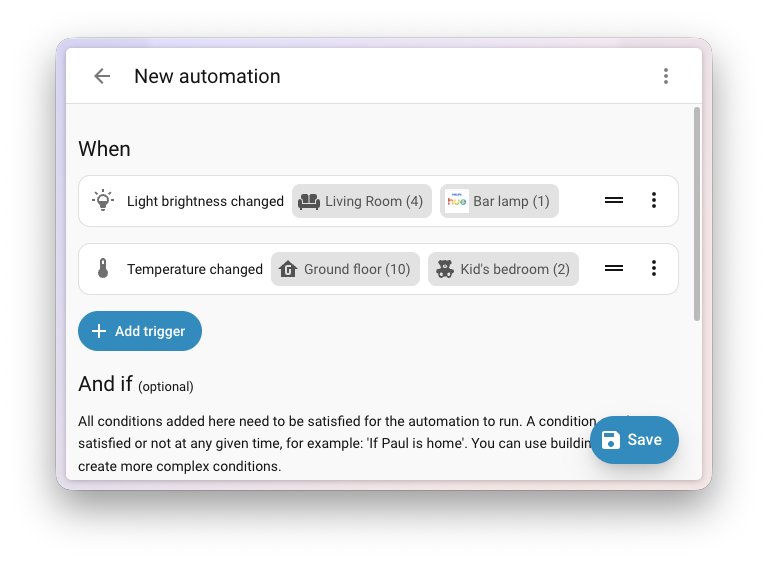
Now every floor, area, device, and label pill in your automation rows shows the number of entities it expands to, right next to its name. If your target selector also filters by domain or device class, the count reflects that filter, so what you see is what the action will actually touch. Select the pill for a quick peek at exactly which entities are included.
It is the kind of small detail that turns “I hope this only hits the right lights” into “yep, twelve, that’s correct”, especially handy as your home grows or you start using labels across rooms.
See at a glance which conditions pass
Conditions are the gatekeepers of your automations. They decide whether something runs or not, and when an automation doesn’t fire the way you expected, the first question is usually: “which condition was actually blocking it?” Until now, finding out meant testing each condition one by one, or waiting for the next run and digging through the trace afterwards.
The automation editor now tells you right there, while you are editing. Every condition row shows a small live test indicator as a badge on its icon that updates in real time as your home changes:
- A green check when the condition currently passes
- A red circle when it doesn’t
- A neutral state when the condition is incomplete or can’t be evaluated yet
- A clear error indicator, with the full message in a tooltip, when the configuration is invalid
Hover the icon to see exactly what the condition is reporting. Edit the condition, and the badge updates immediately, so you can dial in thresholds, zones, or state matches and see the result without leaving the editor. The same indicators also show up on dashboard visibility conditions, so the cards you hide or show conditionally tell you the same story.
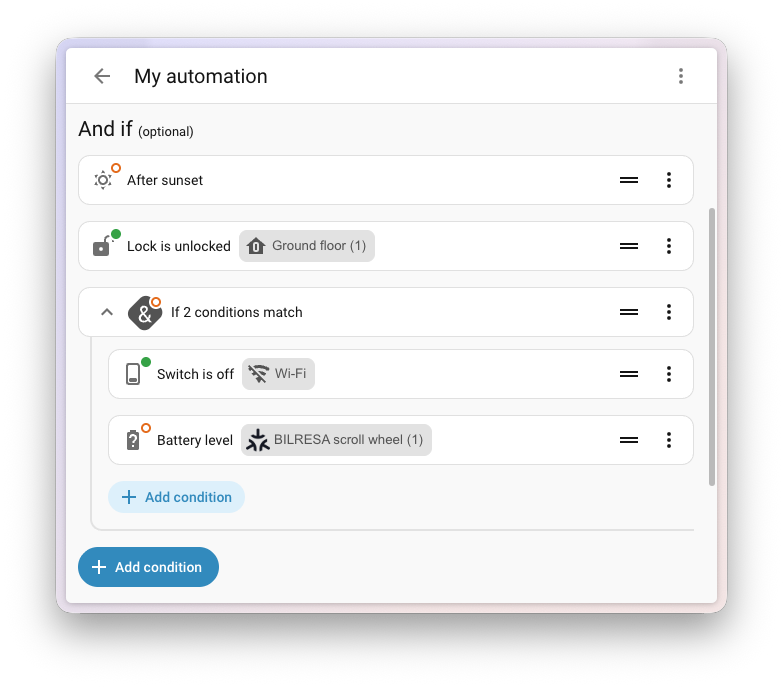
This is part of a broader roadmap effort to bring home context into the automation editor: surfacing the information you need to build and debug automations right where you are working on them.
Add notes to any step in your automation
Aliases are great for renaming a trigger or action, but they have always been a single line, and they double as the label you see in the row. So if you wanted to explain why a step exists (“the porch sensor sometimes triggers on its own in winter, so this waits a few seconds to make sure”), you were out of luck without dropping into YAML.
Every triggerA trigger is the part of an automation that makes the automation start when something specific happens, for example, when the sun sets, a door opens, or a button is pressed. [Learn more], conditionConditions check whether something is true at that moment, for example, whether a door is closed. You can use them in automations and scripts. If a condition is not met, the actions that come after it in the same sequence do not run. At the top level of an automation or script, this stops the automation or script. [Learn more], actionAn action makes Home Assistant do something, for example, turn on a light, send a notification, or activate a scene. Automations and scripts run a list of actions. [Learn more], option, and scriptA script is a saved list of steps that runs when you start it, for example, from a dashboard, with Assist, or from an automation. Unlike an automation, a script has no triggers, so it doesn’t start by itself. [Learn more] field now has a dedicated Notes field, separate from its name. Open the step’s sidebar, jot down whatever future-you needs to know, and it stays with that step forever. We deliberately called it notes and not comments to keep it clear from YAML comments, which are a different thing entirely.
Notes travel with the automation when you duplicate, export, or share it as a blueprintA blueprint is a script, automation, or template entity configuration with certain parts marked as configurable. This allows you to create multiple scripts, automations, or template entities based on the same blueprint, with each having its own configuration-specific settings. Blueprints are shared by the community on the blueprints exchange in the forum. [Learn more], so the reasoning behind a setup is no longer something only the original author remembers.

Tile card features
The tile card keeps growing into one of the most capable building blocks in your dashboards. This release adds two brand-new card features for weather entities and a generous round of additions to the media player tile.
Your forecast, right where you check the weather
Most of us already have a weather tile sitting somewhere on a dashboard. Up until now, the moment you wanted to know what tomorrow looks like, you had to open the more info dialog, jump to a different card, or build a whole forecast section just for that. No more.
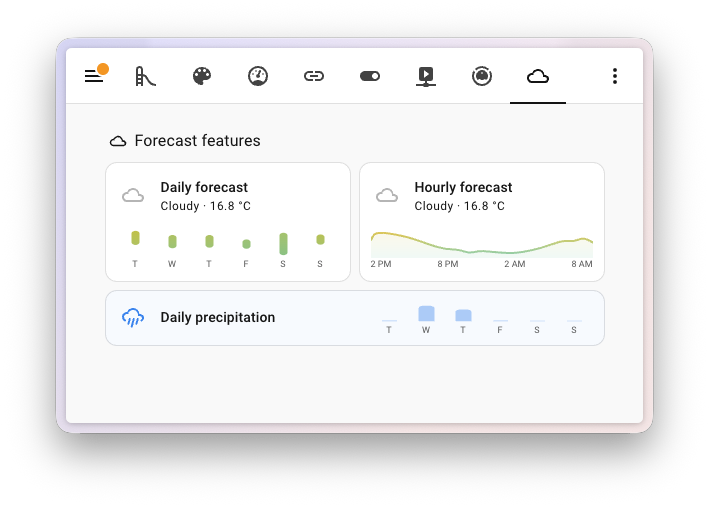
Two new tile card features put the forecast directly onto your existing weather tile:
- Temperature forecast draws a bar chart of high and low temperatures for the days ahead, colored from cool cyan to deep red so you can read the week at a glance. In the hourly view, it renders as a smooth filled curve.
- Precipitation forecast shows how much rain (or snow) is expected for each slot, or, when your weather service only provides it, the chance of precipitation.
Both features automatically pick the best forecast resolution your weather service offers (daily, twice-daily, or hourly), and you can pin a specific resolution or toggle the day and hour labels from the card editor. One small change, big difference: your dashboard now answers the next question before you ask it.
Turning the media player tile into a real remote
Last release was a big step for the media player tile: a proper source picker, a sound mode picker, and playback buttons you could finally pick and reorder. Lots of you ran with it and built beautiful, focused media controls on your dashboards, and some of you immediately came back with: “this is great, but can it also…” 🎶
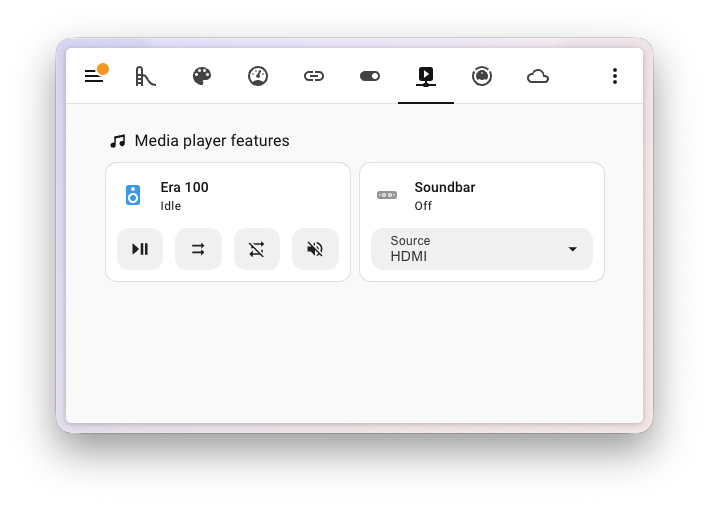
This release fills in those last gaps. Across the media player tile card features, you now have:
- A Mute button on both the Volume slider and Volume buttons features, so you can silence the room straight from the tile.
- Shuffle, Repeat, Volume up, Volume down, and Mute as extra controls you can mix into the Playback feature, alongside the existing transport buttons.
- A filter for the Source and Sound mode dropdowns, so a receiver that reports two dozen inputs only shows the three you actually use.
The result: a single tile that looks like, and acts like, a remote built specifically for that device. No more “almost right” tiles, no more falling back to the more info dialog for that one button you really need. Your Music Assistant setup is going to feel right at home. Thanks, @pcan08 and @MindFreeze!
Z-Wave smart lock credential management
Two releases ago, we added credential management for MatterMatter is an open-source standard that defines how to control smart home devices on a Wi-Fi or Thread network. [Learn more] smart locks: a friendly dialog to add, edit, and remove the users (and the PIN codes that go with them) that your lock accepts, without ever opening the lock’s own app. This release, Z-Wave smart locks get the same treatment. 🔐
Open your lock from the device page and select Manage access from the
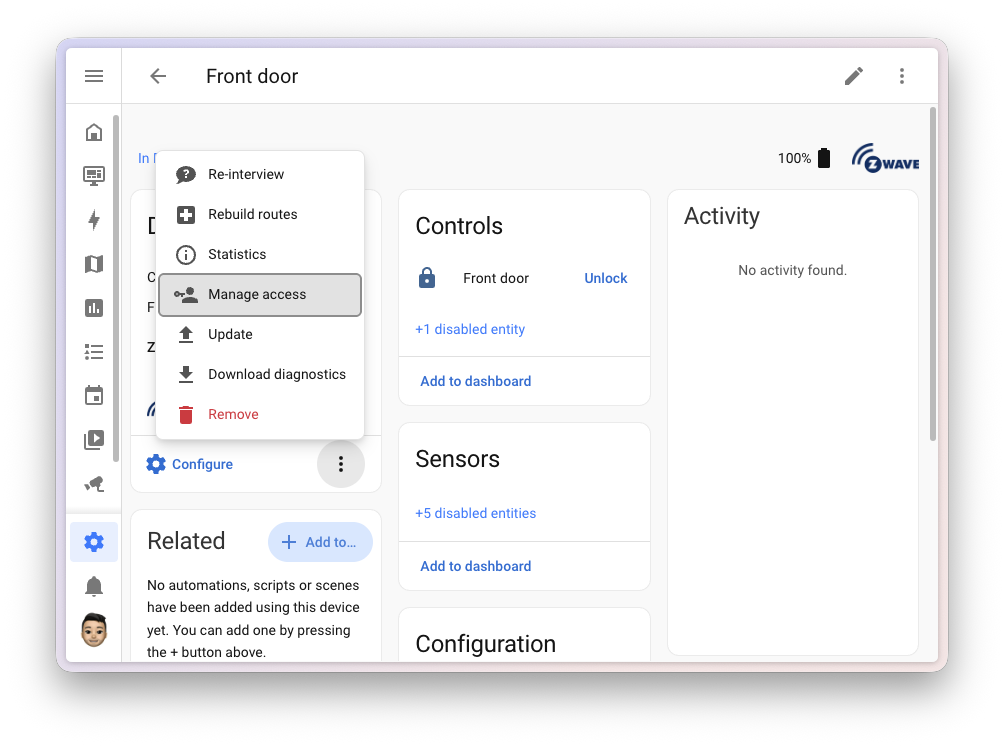
There is one small difference with the Matter version that plays to Z-Wave’s strengths: both PIN codes and passwords are supported, where the lock supports them. PIN codes are limited to digits (the familiar keypad experience), while passwords accept the full character set for locks with an alphanumeric keypad.
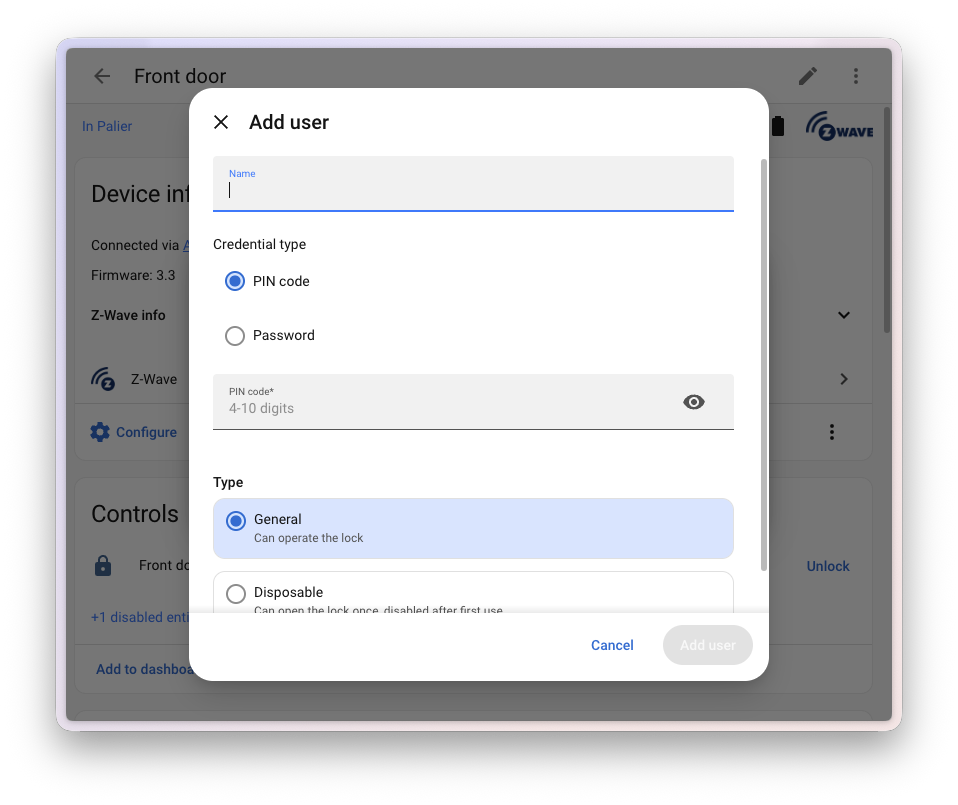
Just like the Matter equivalent, every action behind the dialog is also available as a regular Home Assistant actionAn action makes Home Assistant do something, for example, turn on a light, send a notification, or activate a scene. Automations and scripts run a list of actions. [Learn more]. That means you can hand out a one-time PIN to a guest from an automation, rotate codes on a schedule, or wipe a lost user with a single button press on your dashboard.
A fresh look for the Apps page
Apps (previously known as add-ons) are how you extend the system that Home Assistant runs on with extra software, like a media server, an MQTT broker, a VPN, or a code editor, all running right next to Home Assistant on the same device.
This release gives the Apps page a friendlier, more modern look. Every installed app is shown as its own card with its icon, name, a short description, and a clear indicator of whether it is running, so you can spot the state of your apps at a glance.
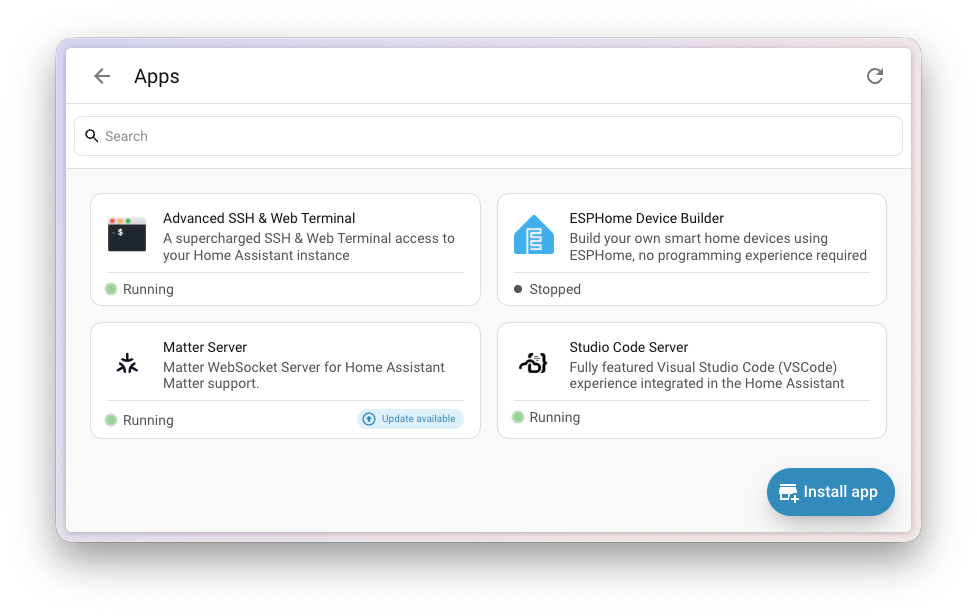
Installed apps can now also carry small tags that highlight what they are, making it easier to scan your list and find what you are looking for. The app detail page got the same care, with a cleaner layout that also works well on a tablet.
Integrations
Thanks to our community for keeping pace with the new integrationsIntegrations connect and integrate Home Assistant with your devices, services, and more. [Learn more] and improvements to existing ones! You’re all awesome 🥰
New integrations
We welcome the following new integrations in this release:
-
AiDot, added by @s1eedz
Control your AiDot Wi-Fi smart lights, including A19 and BR30 bulbs, directly from Home Assistant. Communication happens locally over your network, so no cloud connection is required. -
CentriConnect/MyPropane, added by @gresrun
Keep an eye on your propane tank from Home Assistant. The integration connects to the centriconnect.com cloud service to expose the level and status of tanks equipped with a MyPropane monitor, perfect for getting a notification before you run out. -
Cielo Home, added by @ihsan-cielo
Control your Cielo smart air conditioner and heat pump controllers from Home Assistant, contributed by Cielo themselves. Connects through the Cielo Connect cloud API and exposes each device as a climate entity, so you can adjust modes and temperatures alongside the rest of your home automations. -
Data Grand Lyon, added by @Crocmagnon — launching at 🏆 platinum quality
Bring open data from the city of Lyon, France, into Home Assistant. Track upcoming departure times at TCL public transit stops, and monitor real-time bike and dock availability at Vélo’v bike-sharing stations. -
Guntamatic, added by @JensTimmerman — launching at 🥈 silver quality
Monitor your Guntamatic wood or pellet heater locally from Home Assistant. The integration reads sensor data directly from the heater’s web interface over your local network, with no cloud account needed. -
LG TV via Serial, added by @balloob — launching at 🥈 silver quality
Control your LG TV locally from Home Assistant over its built-in RS-232 serial port. Works through a direct serial cable, a USB-to-serial adapter, or an ESPHome-based serial proxy, giving you a reliable connection that even works while the TV is in standby. Great for older sets without smart features and for commercial signage displays. -
Marantz Infrared, added by @balloob — launching at 🥈 silver quality
Control your Marantz amplifier with any infrared transmitter you already have set up in Home Assistant. Built on top of the Infrared entity platform, so you can pair it with an ESPHome device with an IR LED, or any other supported IR emitter, and operate your amplifier without depending on the network or cloud. -
Mitsubishi Comfort, added by @nikolairahimi
Bring Mitsubishi Electric ductless minisplit heat pump and air conditioning systems into Home Assistant. The integration talks directly to each indoor unit over your local network for low-latency control, and only uses the Kumo Cloud account for the initial device discovery and credential retrieval. Kumo Station outdoor units are supported for temperature monitoring. -
Ouman EH-800, added by @Markus98
Connect your Ouman EH-800 heating controller to Home Assistant. Monitor and control your heating system locally with climate, number, select, sensor, and valve entities, perfect for automating your home’s heat distribution. -
OVHcloud AI Endpoints, added by @Crocmagnon Add a conversation agent powered by OVHcloud AI Endpoints to Home Assistant. Pick from a curated catalog of open-weight large language models hosted in Europe, and use them with Assist to control your home and answer questions.
-
PAJ GPS, added by @skipperro
Track the location of your PAJ GPS devices on the map in Home Assistant. The integration creates a device tracker entity for each tracker in your PAJ account, so you can build automations around their location, like notifications when a tracker arrives home or leaves a zone. -
PTDevices, added by @frogman85978
Monitor your PTLevel water level sensors in Home Assistant. Get notifications when tanks run low or are being used unexpectedly, and build automations to turn off pumps when levels drop or run appliances once water has been delivered. -
Samsung Infrared, added by @lmaertin
Control your Samsung TV with any infrared transmitter you already have set up in Home Assistant. Like the Marantz Infrared integration, it builds on the Infrared entity platform, so you can use an ESPHome device with an IR LED, or any other supported IR emitter, to operate your TV. -
Vistapool, added by @fdebrus Monitor and control your Hayward-branded pool controllers from Home Assistant, including AquaRite, Vistapool, Sugar Valley, Poolwatch, Kripsol, and Dagen devices. The integration uses the official Hayward cloud API with real-time push updates, so changes show up instantly without polling.
-
Xthings Cloud, added by @zhangluofeng
Control your Xthings smart home devices, starting with the U-tec Bright A19 Color smart light bulb, through the Xthings Cloud service. Contributed by Xthings themselves, with real-time status updates delivered over WebSocket push, so the state in Home Assistant stays in sync with what’s happening on your devices. -
Yoto, added by @piitaya
Control your Yoto audio players from Home Assistant. Play and pause cards, change the volume, skip and seek tracks, and see what is currently playing. The integration connects to your Yoto account and receives live playback updates, so changes that happen on the player show up in Home Assistant almost immediately.
Noteworthy improvements to existing integrations
It is not just new integrationsIntegrations connect and integrate Home Assistant with your devices, services, and more. [Learn more] that have been added; existing ones are also being constantly improved. Here are some of the noteworthy changes to existing integrations:
- MQTT picked up two improvements: a new message expiry interval option, and subentry support extended to the date, datetime, and time entity platforms. Thanks, @jbouwh!
- Shelly now exposes an occupancy binary sensor. Thanks, @bieniu!
- Sonos got search, so you can now find tracks, albums, and artists across your music services straight from Home Assistant. Thanks, @PeteRager!
- Reolink battery cameras can now connect directly to Home Assistant, without needing a Reolink Home Hub or NVR as a bridge. Not all models and features are supported yet; using a Home Hub or NVR remains the preferred method. A battery camera cannot be connected both ways at the same time. Thanks, @starkillerOG!
- Tuya received a wave of device-specific improvements: number entities and fault codes for the Pro Breeze OmniDr dehumidifier, water-timer data points and a countdown number for the sfkzq single-valve timers, additional entities for cameras, a number entity for the WG2 alarm panel (Duosmart C30), total production sensor support for SPM02 devices, and support for the InverGo inverter pool heat pump. Thanks, @peterlang-p, @mik-laj, @davidXire, @tbouron, @ChayoteJarocho, and @focabr!
- SwitchBot had a great release with broad device support: the Permanent Outdoor Light, Weather Station, and Lock Vision (Pro) / Lock Pro Wifi are now supported, the Meter CO2 gained a display time offset number entity, and the Air Purifier now exposes its LED settings. Thanks, @elgris, @Onero-testdev, and @zerzhang!
- SmartThings TVs now let you select the input source, and Copper water meters expose their sensors. Thanks, @felipecrs and @joostlek!
- Alexa Devices got two big additions: a new media player platform that exposes your Echo devices as media players, with playback, volume, and mute controls, and a new event entity that surfaces the voice commands your Echo hears so you can react to them in automations. Thanks, @jamesonuk and @chemelli74!
- Anthropic Claude conversations now support the web fetch tool, allowing the model to retrieve and reason about live web content. Thanks, @Shulyaka!
-
Google Nest added a
nest.set_fan_timeraction, so you can script your thermostat’s fan timer right from Home Assistant. Thanks, @tronikos! - HomeWizard updated charging strategies with support for their new smart charging feature, and two new battery group sensors: target power and group power. Thanks, @DCSBL!
- UniFi Protect added an alarm profile select entity, letting you switch between alarm profiles directly from Home Assistant. Thanks, @RaHehl!
- FRITZ!SmartHome now ships data descriptions for all configuration fields, making setup easier to understand. Thanks, @mib1185!
- Viessmann ViCare RadiatorActuator devices now expose a target temperature sensor. Thanks, @lackas!
- Cambridge Audio receivers now expose a volume limit, so you can prevent overly loud playback. Thanks, @noahhusby!
- Nord Pool picked up a binary sensor for price-based automations. Thanks, @gjohansson-ST!
- YouTube channels now expose a video count sensor. Thanks, @nathan-osman!
- OneDrive added a delete action so you can clean up files from your automations. Thanks, @leodrivera!
- WeatherFlow Cloud stations now expose dedicated station-level sensors. Thanks, @jeeftor!
- Portainer continues to grow: new system health and disk space coordinators, and recreate-container service actions. Thanks, @erwindouna!
- Ohme EV chargers got two new controls: a state of charge input number and a solar boost switch. Thanks, @dan-r!
- Jewish Calendar now exposes a calendar entity, perfect for tracking Jewish holidays and Shabbat in your dashboards and automations. Thanks, @tsvi!
- BleBox picked up several improvements: a new update platform that exposes installed and latest firmware versions and lets you trigger firmware updates straight from Home Assistant, plus tilt-only mode and 180-degree tilt support for cover and shutter entities. Thanks, @bkobus-bbx!
- PrusaLink 3D printers gained more sensors: X/Y axis position, location, minimum extrusion temperature, plus SD ready, farm mode, and connection status binary sensors. Thanks, @heikkih!
- System Bridge gained a notify entity, so you can send desktop notifications from your automations. Thanks, @tr4nt0r!
- Indevolt battery support expanded significantly with new battery temperature, MOS temperature, main MOS temperature, cycle count, transformer temperature, and real-time control sensors. Thanks, @Xirt and @karlbeecken!
- Qube heat pump added a water heater entity for domestic hot water control (with a boost mode for using surplus energy), plus switches for summer mode, anti-legionella cycle, heating curve, and heating demand. Thanks, @MattieGit!
- Eurotronic Comet Blue thermostats added a number platform exposing the eco and comfort setpoints and the temperature offset, so you can fine-tune your schedule without leaving the dashboard. Thanks, @rikroe!
- Elk-M1 Control picked up dedicated number entities for the Elk’s configurable settings (such as timers), previously buried inside a single sensor. Thanks, @gwww!
- Control4 now supports motorized window treatments through a new cover platform. Thanks, @nayfield!
- IMGW-PIB added river vegetation cover sensors for emergent, floating, and submerged vegetation. Disabled by default, so you can enable just the ones you need. Thanks, @bieniu!
- Watts Vision + received HVAC action and preset mode support, plus a new timer mode service. Thanks, @theobld-ww!
- Kiosker gained a switch to disable the screensaver, plus a set of buttons for common kiosk actions: navigate forward, backward, and home; clear cache and cookies; print; ping; and interact with the screensaver. Thanks, @Claeysson!
- V2C EV chargers now expose their LED lights. Thanks, @dgomes!
- Lunatone DALI lighting controllers now expose their device status as sensors. Thanks, @MoonDevLT!
- Satel Integra alarm zones now expose temperature sensors. Thanks, @Tommatheussen!
-
Template entities now support the device tracker platform, giving you a modern replacement for the
device_tracker.seeaction that was deprecated last release. Thanks, @Petro31!
Integration quality scale achievements
One thing we are incredibly proud of in Home Assistant is our integration quality scale. This scale helps us and our contributors to ensure integrations are of high quality, maintainable, and provide the best possible user experience.
This release, we celebrate several integrationsIntegrations connect and integrate Home Assistant with your devices, services, and more. [Learn more] that have improved their quality scale:
-
4 integrations reached platinum 🏆
- Casper Glow, thanks to @mikeodr
- Indevolt, thanks to @Xirt
- Tailwind, thanks to @frenck
- UptimeRobot, thanks to @chemelli74
-
1 integration reached gold 🥇
- Novy Cooker Hood, thanks to @piitaya
-
1 integration reached silver 🥈
- Jandy iAquaLink, thanks to @flz
-
2 integrations reached bronze 🥉
- Nobø Ecohub, thanks to @oyvindwe
- Zeversolar, thanks to @mhuiskes
This is a huge achievement for these integrations and their maintainers. The effort and dedication required to reach these quality levels is significant, as it involves extensive testing, documentation, error handling, and often complete rewrites of parts of the integration.
A big thank you to all the contributors involved! 👏
Now available to set up from the UI
While most integrationsIntegrations connect and integrate Home Assistant with your devices, services, and more. [Learn more] can be set up directly from the Home Assistant user interface, some were only available using YAML configuration. We keep moving more integrations to the UI, making them more accessible for everyone to set up and use.
The following integrations are now available via the Home Assistant UI:
- Elgato Avea, done by @pattyland
- openSenseMap, done by @AlCalzone
- OPNsense, done by @HarlemSquirrel
Farewell to the following
The following integrationIntegrations connect and integrate Home Assistant with your devices, services, and more. [Learn more] is also no longer available as of this release:
- Konnected has been removed. The legacy Konnected.io integration was deprecated in Home Assistant 2025.10 and is now removed. To keep using your Konnected hardware, follow the migration guide from Konnected to flash your device with ESPHome firmware.
Other noteworthy changes
There are many more improvements in this release; here are some of the other noteworthy changes:
- A friendlier setup for MatterMatter is an open-source standard that defines how to control smart home devices on a Wi-Fi or Thread network. [Learn more] devices. When you add any Matter device, Home Assistant now asks you to name it and assign it to an area right away, so it is ready to use the way you intend from the first moment. For contact sensors and covers, you can also pick what the device is attached to (a door, window, garage door, or something else). On iOS, the pre-filled name and device class selection require an upcoming iOS app update; until then, the previous behavior is used.
- OpenThread Border Router 1.4 is out of beta. The OpenThread Border Router app now ships ThreadThread is a low-power mesh networking standard that is specifically designed for smart home applications. It is a protocol that defines how devices communicate. [Learn more] 1.4 by default, no beta toggle required. For now, this is mostly about bug fixes and stability, including the new built-in mDNS implementation from OpenThread, which should help resolve a class of stubborn Thread connectivity issues that previously traced back to mDNS quirks in some home routers. It also lays the groundwork for bringing the new Thread 1.4 features to Home Assistant in the near future.
- Sirens join the Matter integration. Matter sirens (like Heiman-style smoke detectors that double as a loud alarm) are now exposed as proper siren entitiesAn entity represents a sensor, actor, or function in Home Assistant. Entities are used to monitor physical properties or to control other entities. An entity is usually part of a device or a service. [Learn more] you can switch on and off from automations and dashboards. Thanks, @lboue! 🚨
- Bluetooth proxies are now much friendlier to battery-powered devices. Until now, every Bluetooth scanner ran in active mode, constantly polling devices and waking up your battery-powered Bluetooth sensors and trackers more often than they need to. Starting this release, the default for both the Bluetooth integration and ESPHome Bluetooth proxies is the new Auto mode, which switches to active scanning only when an integration actually needs it, and only on one scanner at a time. The result: around 95–96% less battery used for Bluetooth scanning, while everything keeps working the way it did. The Bluetooth UI catches up too, labeling each adapter as Auto (active) or Auto (passive), and the device info dialog gained a Raw advertisement field for debugging. More on the default change in the backward-incompatible changes section.
- Firmware version in the devices table. The Devices page gets a hidden-by-default Firmware column you can switch on from the table options, making it easy to check whether a firmware update actually landed without changing the default layout. Thanks, @markvp!
- A friendlier ZHA group page. The ZHA group create and edit screens have been rebuilt around a compact, card-based layout that keeps your devices and group settings visible together, instead of one long table you had to scroll through. Thanks, @jpbede!
- Search by label in more places. The data tables for helpersA helper is a virtual entity you create inside Home Assistant. It is not backed by a physical device. Helpers store values, track state, or do calculations that your automations and dashboards need. [Learn more], automations, scenes, and scripts now let you filter by labelLabels in Home Assistant allow grouping elements irrespective of their physical location or type. Labels can be assigned to areas, devices, entities, automations, scenes, scripts, and helpers. Labels can be used in automations and scripts as a target for actions. Labels can also be used to filter data. [Learn more], matching the search bar that devices and entities already had. Thanks, @ildar170975!
- The backup encryption key is harder to miss. Home Assistant already creates a backupHome Assistant has built-in functionality to create files containing a copy of your configuration. This can be used to restore your Home Assistant as well as migrate to a new system. The backup feature is available for all installation types. [Learn more] automatically before every update, but that backup is only useful if you can still decrypt it. The Backup settings page has been reorganized to put your encryption key front and center, with a clear reminder to save it somewhere safe. Losing that key is one of the most painful ways to lose access to a backup, so we want to make sure you don’t.
- Color customization for graph cards. The statistics graph card and history graph card now let you pick a custom color per entity, both from the visual editor and in YAML. Thanks, @ildar170975!
- Advanced mode is gone. The Advanced mode toggle on your user profile, and every feature that used to hide behind it, is now retired. We have been peeling away its gates release by release; this release finishes the job. A single toggle was never a great fit: it bundled unrelated features together and quietly suggested some parts of Home Assistant were only for “advanced” users. Neither is true. Everything that used to live behind it is now simply available to everyone by default. More background in the Open Home Foundation roadmap.
A clearer view of your home’s energy
Two quality-of-life upgrades land in the energy dashboard this release. ⚡
If you have a home battery, you can now hook up its state-of-charge sensor (the percentage one) right from Settings > Dashboards > Energy. Once it is set, the Battery node on the energy distribution card shows the current charge level alongside the energy flowing in and out, and a matching battery badge appears at the top of the energy panel so you can see at a glance how full your battery is, without leaving the dashboard. Thanks, @MindFreeze!
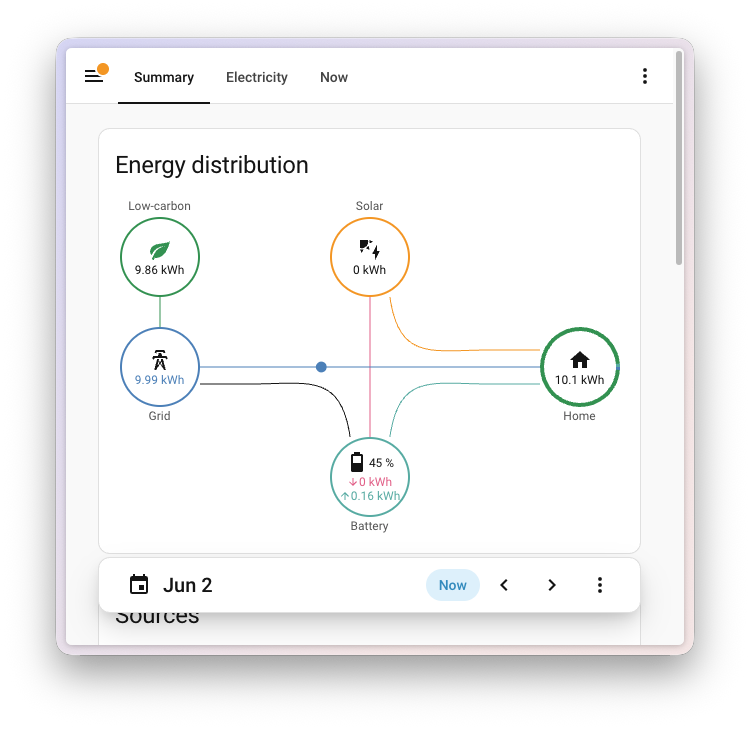
The other addition is small but long-requested: you can now give your grid, solar, battery, gas, and water sources a custom name in the energy configuration. So instead of “Grid consumption” and “Grid return”, you can call them “Main meter” and “Solar export”, or whatever makes sense for your home. The names flow through to the cards, charts, and statistics, making multi-source setups (like a separate EV meter or a second water tap) far easier to tell apart. Thanks, @karwosts!
Quick links between everything you care about
Home Assistant is full of things that are related to each other: a device has entities, those entities show up in automations and scripts, automations live in areas, areas have labels, and so on. Getting from one to the next used to mean a lot of back-and-forth between settings pages.
This release threads a generous set of quick links through those views so you can jump straight to the related thing, or create a new one without losing your place:
- Device pages now bundle related automations, scriptsA script is a saved list of steps that runs when you start it, for example, from a dashboard, with Assist, or from an automation. Unlike an automation, a script has no triggers, so it doesn’t start by itself. [Learn more], and scenesScenes capture the states you want certain entities to be. For example, a scene can specify that light A should be turned on and light B should be bright red. [Learn more] into a single Related card (instead of three separate ones), and the existing quick links section gains shortcuts to all the other places that reference the device.
- Area pages got the same treatment, with quick links into the tables and dashboards that already filter by that area in a single step.
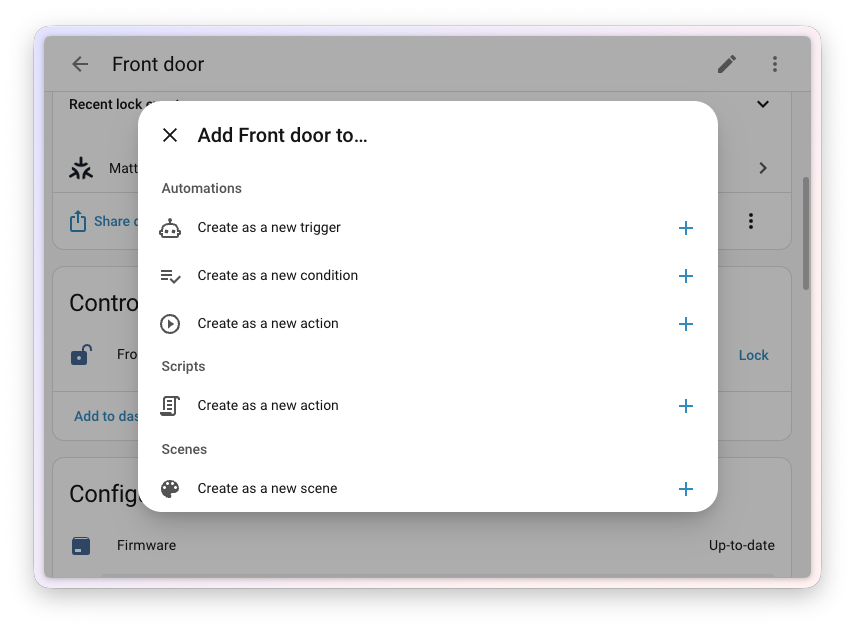
- From an entity, device, or area, you can now create a new automation or script with that target already wired into a trigger, condition, or action, no copy-pasting entity IDs required. (This piece rides on top of the purpose-specific triggers and conditions Labs preview, so enable it at Settings > System > Labs to see the option.)
- Label navigation actions now include scenes and scripts alongside automations, so a label like “morning routine” surfaces everything tagged with it, not just a subset.
Individually these are small. Together they make Home Assistant feel even more connected than it already was, with fewer detours between the pages. Thanks, @timmo001!
YAML linting inside the UI editors
A small quality-of-life improvement that should not go unnoticed. You don’t need to know or use YAML to use Home Assistant, but if you like it, or want to dive into more specific use cases, we give you the power to do so.
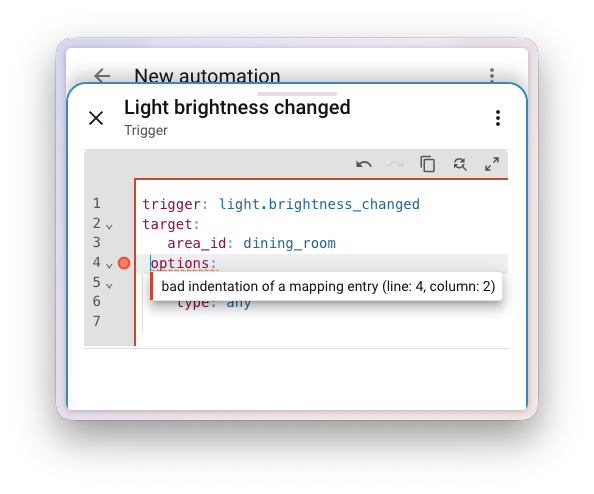
The YAML code editors throughout the UI now show inline linting: missing colons, unmatched quotes, and yes, that one space too many or too few in your indentation (we know, we know 😅), are all highlighted as you type, right next to the line that causes them. No more saving, hitting an obscure error, and scrolling back to find the cause.
Patch releases
We also release patch releases for Home Assistant Core. These patch releases are released on a weekly basis (on Fridays) and contain bug fixes and small improvements.
2026.6.1 - June 5
- Fix Lyric sensor crash when next_period_time is None (@bk86a - #167831)
- Fix SleepIQ 401 storm by isolating client session cookies (@Stormalong - #172276)
- Upgrade HomeLink package, set integration type (@rjones-gentex - #172371)
- Bump actron-neo-api to 0.5.12 (@kclif9 - #172902)
- Switchbot Cloud: Fixed an issue where condition filtering for enabled Webhooks was abnormal (@XiaoLing-git - #172903)
- Bump aioautomower to 2.7.6 (@Thomas55555 - #172937)
- Add more Reolink diagnostic info (@starkillerOG - #172945)
- Fix Mitsubishi Comfort devices skipped due to unresolved local address (@nikolairahimi - #172959)
- Bump idasen-ha to 2.7.0 (@abmantis - #172962)
- Fix value template in MQTT Fan and Siren subentry setup (@jbouwh - #172980)
- Improve person tests (@emontnemery - #172997)
- Bump imgw_pib to 2.2.2 (@bieniu - #172999)
- Fix person in_zones propagation from scanner in home zone (@emontnemery - #173007)
- Bump holidays to 0.98 (@gjohansson-ST - #173029)
- Portainer extend timeout for disk space coordinator (@erwindouna - #173032)
- Convert LinkPlay configuration_url to string for device registry (@frenck - #173034)
- Fix Duco mode end time sensor name (@ronaldvdmeer - #173045)
- Unify query token auth in http views (@edenhaus - #173082)
- Create certificate files before trying to migrate the MQTT config entry (@jbouwh - #173087)
- Bump wheels to 2026.06.0 (@edenhaus - #173089)
- Bump pySmartThings to 4.0.1 (@joostlek - #173092)
- Bump yoto-api to 3.1.6 (@piitaya - #173104)
- Bump aiostreammagic to 2.13.2 (@noahhusby - #173114)
- Fix process advertisement for active scans (@elupus - #173116)
2026.6.2 - June 9
- Update PARALLEL_UPDATES to 0 for Squeezebox platforms (@peteS-UK - #172906)
- Bump pyyardian to 1.4.0 (@aeon-matrix - #173020)
- Bump pytrydan to v1.0.1 (@dgomes - #173047)
- Improve and complete exception handling for Alexa Devices (@chemelli74 - #173053)
- Switch to active scanner for gardena (@elupus - #173062)
- Bump opower to 0.18.3 (@tronikos - #173141)
- Bump plugwise to v1.11.4 (@bouwew - #173147)
- Ensure opentherm_gw boiler and thermostat manufacturers are strings (@mvn23 - #173162)
- Wait for ESPHome bluetooth proxy connection at startup (@bdraco - #173164)
- Wait for Shelly bluetooth proxy connection at startup (@bdraco - #173165)
- Have Plugwise handle unavailable temperature measurements (@joostlek - #173173)
- Fix Shelly virtual component unit retrieval (@thecode - #173183)
- Adjust ONVIF event fallbacks for battery cameras (@starkillerOG - #173214)
- Update frontend to 20260527.5 (@bramkragten - #173236)
- Bump pydaikin to 2.18.1 (@purcell-lab - #173249)
- Fix homeassistant hardware unique id migration (@MartinHjelmare - #173258)
- Bump renault-api to 0.5.12 (@chemelli74 - #173289)
- Mitigate TTS ResultStream leak in pipeline (@synesthesiam - #173290)
- Ensure we provide strings to vol.In for philips js (@elupus - #173313)
- Bump opower to 0.18.4 (@tronikos - #173323)
- Fix reload fails when MQTT entry is not set up (@jbouwh - #173335)
- Handle unavailable Zinvolt devices better (@joostlek - #173359)
- Bump mitsubishi-comfort to 0.3.1 (@nikolairahimi - #173362)
- Set Zinvolt max output to 2kW if unlocked (@joostlek - #173367)
- Only allow specific protocols with ffmpeg in Wyoming satellite announce (@synesthesiam - #173381)
2026.6.3 - June 12
- Add debug logging for Mitsubishi Comfort polling failures (@nikolairahimi - #173364)
- Do not enable MQTT entities though discovery that were disabled by user (@jbouwh - #173404)
- Change update interval for UptimeRobot (@chemelli74 - #173435)
- Redact more fields in diagnostics for Alexa devices (@chemelli74 - #173446)
- Fix UniFi Protect ufp_set debug log printing UndefinedType for translation-key entities (@heytcass - #173460)
- Revert “Unify query token auth in http views” (@edenhaus - #173466)
- Bump reolink_aio to 0.21.0 (@starkillerOG - #173477)
- Bump aioamazondevices to 14.0.3 (@chemelli74 - #173478)
- Bump pytrydan to 1.0.2 (@dgomes - #173479)
- Bump hassil to 3.6.0 (@synesthesiam - #173031)
- Update hassil to 3.7.0 (#173484)
- Refresh preferred Thread border agent address on OTBR reconnect (@agners - #173508)
- Update frontend to 20260527.6 (@bramkragten - #173522)
- Bump bthome-ble to 3.23.4 (@Ernst79 - #173526)
- Fix Hue light level sensor crash on None value (@frenck - #173532)
- Fix Hue grouped light icon by adding translation_key (@frenck - #173536)
- Fix iCloud RuntimeError on unload by running cancel in executor (@frenck - #173537)
- Convert JPEG-incompatible image modes to RGB in image upload thumbnail generation (@frenck - #173538)
- Convert RainMachine hw_version to string for device registry (@frenck - #173545)
- Convert OpenGarage sw_version to string for device registry (@frenck - #173546)
- Fix Yale Smart Living panic button unique_id for multiple hubs (@frenck - #173547)
- Suppress InsecureKeyLengthWarning in HTML5 push notifications (@frenck - #173551)
- Fix Rituals Perfume Genie sw_version dict passed to device registry (@frenck - #173552)
- Return enum values from config_entry_attr template function (@frenck - #173554)
- Sort aliases in LLM prompts for stable prefix caching (@frenck - #173558)
- Disambiguate duplicate channel names in LG Netcast source list (@frenck - #173560)
2026.6.4 - June 19
- Fix Growatt total_output_power 1000x too low with V1 API (@johanzander - #172474)
- Solve issue with double slash in url when writing data to InfluxDB (@RobBie1221 - #173395)
- Avoid leaking Immich API key in error logs (@frenck - #173541)
- Stop validating # of slots in zwave_js.set_credential action (@raman325 - #173644)
- Add missing Miele dishwasher codes (@astrandb - #173662)
- Bump aiodiscover to 3.3.1 (@bdraco - #172882)
- Bump aiodiscover to 3.3.2 (@bdraco - #173705)
- Skip Miele fan set_percentage when already at the target step (@frenck - #173725)
- Add missing flow form field translation in tuya (@frenck - #173745)
- Add missing flow form field translation in flux_led (@frenck - #173746)
- Add missing flow form field translation in hue (@frenck - #173747)
- Bump lxml to 6.1.1 (@gjohansson-ST - #173748)
- Add missing flow form field translations in islamic_prayer_times (@frenck - #173749)
- Add missing flow form field translation in lacrosse_view (@frenck - #173750)
- Fix flow form field translation key in lookin (@frenck - #173751)
- Add missing flow form field translation in melnor (@frenck - #173752)
- Add missing flow form field translation in gogogate2 (@frenck - #173753)
- Fix flow form field translation key in meteoclimatic (@frenck - #173754)
- Fix options flow form field translation key in plaato (@frenck - #173755)
- Add missing flow form field translation in blink (@frenck - #173756)
- Add missing flow form field translation in motionblinds_ble (@frenck - #173758)
- Add missing flow form field translation in snooz (@frenck - #173760)
- Bump aioamazondevices to 14.0.4 (@frenck - #173761)
- Bump pyrainbird to 6.3.1 (@frenck - #173786)
- Bump pyituran to 0.1.6 (@shmuelzon - #173833)
- Add API_GEN_4 support to Subaru integration (@jpettitt - #173956)
- Fix flow form field translation keys in here_travel_time (@frenck - #173992)
- Fix flow form field translations in hlk_sw16 (@frenck - #173993)
- Add missing flow form field translation in otp (@frenck - #173994)
- Add missing flow form field translation in honeywell (@frenck - #173996)
- Fix flow form field translations in local_calendar (@frenck - #173997)
- Fix flow form field translation key in sia (@frenck - #173998)
- Fix flow form field translations in modem_callerid (@frenck - #173999)
- Add missing flow form field translation in airvisual (@frenck - #174000)
- Add missing flow form field translations in ecobee (@frenck - #174002)
- Add missing flow form field translation in iskra (@frenck - #174004)
- Add missing flow form field translations in tractive (@frenck - #174005)
- Add missing subentry flow translations in scrape (@frenck - #174006)
- Fix MQTT discovery option unjustly added to entry data (@jbouwh - #174073)
- Cast numeric firmware to string for squeezebox hw_version (@frenck - #174076)
- Retry webdav setup on connection errors (@frenck - #174077)
- Bump opower to 0.18.5 (@frenck - #174080)
- Cast system version to string for simplisafe device model (@frenck - #174081)
- Filter out closed sites in Amber Electric config flow (@frenck - #174084)
- Bump aioamazondevices to 14.1.2 (@chemelli74 - #174114)
- Fix stale routine entities removal for Alexa Devices (@chemelli74 - #174138)
- Bump aioamazondevices to 14.1.3 (@chemelli74 - #174158)
- Cast SwitchBot Cloud device sw_version to string (@gaborbernat - #174167)
- Bump aiocomelit to 2.0.5 (@frenck - #173800)
- Bump aiocomelit to 2.0.7 (@chemelli74 - #174183)
- Update max prebrew numbers in lamarzocco (@zweckj - #174204)
- Fix Elk-M1 reconfigure failing when entry has no unique_id (@frenck - #174230)
- Include Sonos favorites in source list and gate SELECT_SOURCE dynamically (@frenck - #174231)
- Skip fill sensor for Rituals diffusers without fill data (@frenck - #174232)
- Handle Weheat API errors during config flow entry creation (@frenck - #174234)
- Re-raise non-401 HTTP errors in Tank Utility setup (@frenck - #174272)
- Fix econet fan mode select returning int instead of str (@frenck - #174274)
- Update frontend to 20260527.7 (@bramkragten - #174285)
- Cast Xiaomi Gateway sub-device firmware version to string (@frenck - #174294)
- Remove event entities from virtual groups for Alexa Devices (@chemelli74 - #174303)
- Bump pyroute2 to 0.9.6 (@bdraco - #172521)
- Bump aioimmich to 0.15.0 (@mib1185 - #174305)
- Bump dsmr-parser to 1.9.0 (@TheJulianJES - #174307)
Need help? Join the community
Home Assistant has a great community of users who are all more than willing to help each other out. So, join us!
Our very active Discord chat server is an excellent place to be, and don’t forget to join our amazing forums.
Found a bug or issue? Please report it in our issue tracker to get it fixed! Or check our help page for guidance on more places you can go.
Are you more into email? Sign up for the Open Home Foundation Newsletter to get the latest news about features, things happening in our community, and other projects that support the Open Home straight into your inbox.
Backward-incompatible changes
We do our best to avoid making changes to existing functionality that might unexpectedly impact your Home Assistant installation. Unfortunately, sometimes it is inevitable.
We always make sure to document these changes to make the transition as easy as possible for you. This release has the following backward-incompatible changes:
Purpose-specific triggers (Labs)
The behavior options for the Labs purpose-specific triggers have been renamed to better match what they do: any is now each, and last is now all. The default is now each.
If you have automations that use these triggers from the Labs preview at Settings > System > Labs, open them in the automation editor and re-pick the behavior option. Any YAML you wrote against the old keys needs to be updated to the new names.
(@emontnemery - #172348)
Bluetooth
The default Bluetooth scanning mode has changed to Auto, which dynamically switches between active and passive scanning depending on what is happening. This saves around 95-96% of the battery used for Bluetooth scanning while keeping the same functionality for most setups.
If you run into issues after the upgrade, you can switch your Bluetooth adapter back to Active scanning. Go to Settings > Devices & services, open the Bluetooth integration, and select Configure on your adapter to change the scanning mode.
Certificate Expiry
The error attribute on the certificate expiry sensor now returns a proper None value instead of the string "None" when there is no error.
If you use this attribute in templates, update your comparisons from == "None" to is none.
ESPHome
The default Bluetooth proxy scanning mode for ESPHome devices is now Auto. Devices that were previously set to Active are automatically migrated to Auto, while devices set to Passive keep their setting.
If you need Active scanning for a specific device, change it back in the device options under Settings > Devices & services.
HDMI-CEC
Calling the turn_off action on HDMI-CEC switch or media player entities now sends the standard CEC standby command instead of a vendor-specific power-off command. This works more reliably across devices from different manufacturers.
If you relied on the previous behavior, you can send the original command using the hdmi_cec.send_command action with keypress 0x44 followed by 0x6c.
IronOS
The uptime sensor for IronOS soldering irons has changed from a duration sensor (reporting seconds) to a timestamp sensor that reports when the device was started.
Update any automations or dashboards that read this sensor to work with the new timestamp format.
ONVIF
When you call the onvif.ptz action with continuous_duration: 0, the integration no longer sends a Stop command after the ContinuousMove. This lets you start a continuous movement and stop it later with a separate call.
If your automations rely on the camera stopping automatically, set continuous_duration to the desired duration in seconds.
(@yoxcu - #163173) (ONVIF documentation)
Shelly
Shelly devices used as Bluetooth scanners now support the new Auto scanning mode. Existing devices set to Active are automatically migrated to Auto for better battery and performance.
You can change the scanning mode back in the device options under Settings > Devices & services.
SmartThings
The source attribute on SmartThings media players is now normalized to standard Home Assistant values. For example, D.IN is now reported as digital_input and BT as bluetooth.
If you use the source attribute in automations, dashboards, or templates, update them to match the new values.
Template entities
The legacy template platform syntax under the individual platform keys has been removed. This syntax was deprecated in Home Assistant 2025.12 and has now reached the end of its 6-month deprecation period.
This affects the following platforms:
alarm_control_panelbinary_sensorcoverfanlightlocksensorswitchvacuumweather
Move your template entities to the modern template: syntax. A step-by-step migration guide is available in the Removal of legacy template entities forum thread.
(@Petro31 - #169608, #169610, #169611, #169613, #169615, #169725, #169728, #169730, #169732, #169734) (Template documentation)
Tuya
The unit of measurement provided by the Tuya API now takes precedence over the default unit assigned by Home Assistant. This makes the reported value match what the Tuya app shows.
If your device reports an invalid or unexpected unit, please submit a bug report with the device details and the unit it reports and adjust it accordingly.
(@epenet - #170338) (Tuya documentation)
Velux
The deprecated velux.reboot_gateway action has been removed. Use the reboot button entity on your Velux gateway instead.
If you are a custom integration developer and want to learn about changes and new features available for your integration: Be sure to follow our developer blog. The following changes are the most notable for this release:
- BrowseMediaSource: domain is now required
- Changes to the condition and script APIs
- Custom card suggestions in the card picker
- Deprecating config entry listener with reloading methods in config flow
- Deprecation of advanced mode in data entry flow
- Format entity names in custom cards
- Frontend component updates in 2026.6
- MQTT publish API changes
- MQTT publish API supports message expiry interval
All changes
Of course, there is a lot more in this release. You can find a list of all changes made here: Full changelog for Home Assistant Core 2026.6.